In this article we will talk about how to host multiple sites with LAMP stack on AWS Lightsail — WordPress, custom PHP application and static sites on one server, with this step by step guide.
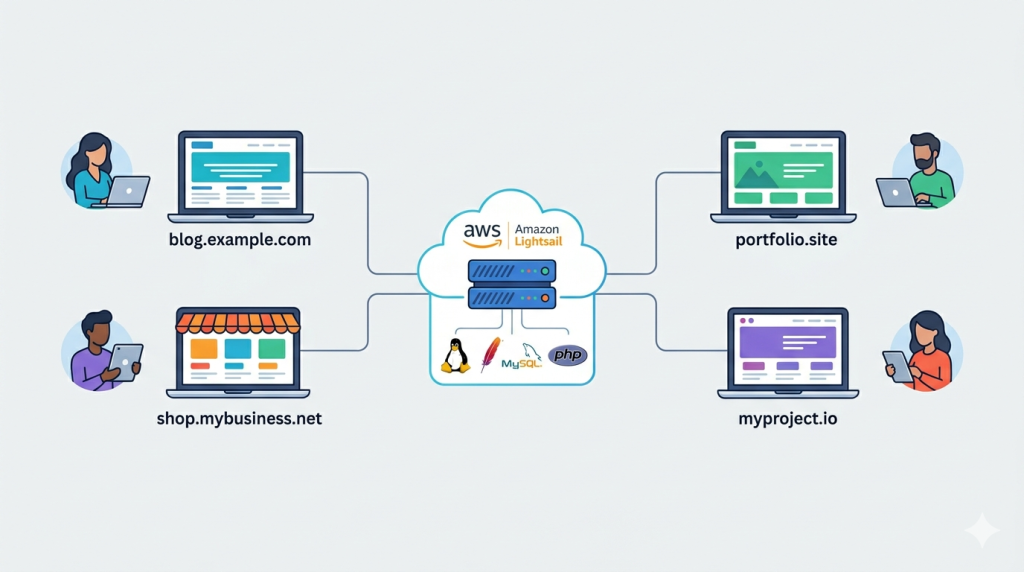
Most tutorials available online about running multiple websites on a single server, point you straight at WordPress Multisite. That’s fine if all your sites share the same WordPress installation, themes or plugins — but what if they don’t?
You might want few separate WordPress blogs, a static portfolio site, and a landing page, all running independently on one server. WordPress Multisite can’t do that cleanly. A LAMP stack on AWS Lightsail can.
This guide walks you through exactly how to set up a portfolio of websites — WordPress, custom and static — on a single AWS Lightsail LAMP instance. Each site is fully independent, with its own database, its own files, and its own SSL certificate.
What Does “Host Multiple Sites With LAMP Stack” Actually Mean?
Hosting multiple sites with LAMP stack means running several websites on a single Linux server that has Apache, MariaDB, and PHP installed. Apache uses a feature called virtual hosts to route each incoming domain to its own folder on the server.
Each site gets its own directory, its own database, and its own Apache config file. From the outside, every site looks like it lives on a separate server. From the inside, they share the same machine and the same set of resources.
This approach is ideal if you manage a small portfolio of websites and want to keep costs down without compromising on isolation. You can still manage each website with the required tools and services while keeping your hosting bill manageable.
Table of Contents
Why AWS Lightsail LAMP Stack Is a Good Fit
AWS Lightsail is Amazon’s simplified cloud hosting service. It gives you a full virtual private server at a fixed monthly price — no surprise bills, no complex networking setup. Though this article is written keeping AWS Lightsail in mind, it will work on Bitnami LAMP on any hardware.
The LAMP (PHP 8) blueprint on Lightsail comes with Apache, MariaDB, and PHP pre-installed and pre-configured under /opt/bitnami/. It’s a clean starting point. Unlike the Bitnami WordPress blueprint, the LAMP blueprint has no application pre-installed, so you choose exactly what goes on it.
For a portfolio of websites, the 4 GB / $20 per month plan is a solid starting point. It handles two or three WordPress sites and a couple of static sites comfortably.
The Architecture: One Server, Four Sites
Before touching the server, it helps to understand the layout you’re building. For this discussion we will consider the below scenario, you can increase or decrease the hosted sites based on your requirements. You can use this to host travel blogs, personal portfolio site or any self build php application.
In this example, we will build a server which will run two WordPress installations and two static sites from a single instance of AWS Lightsail server.
/opt/bitnami/apache/htdocs/
├── site1/        ← WordPress site
├── site2/        ← WordPress site
├── site3/        ← Static HTML site
└── site4/        ← Static HTML site
Each domain has its own folder. Apache reads a config file for each domain and knows exactly where to look. MariaDB holds a separate database for each WordPress site. Redis provides object caching for WordPress, keeping each site’s cache isolated.
Let’s start setting the sites up.
Step 1: Provision Your Lightsail Instance
Log in to the AWS Lightsail console and create a new instance.
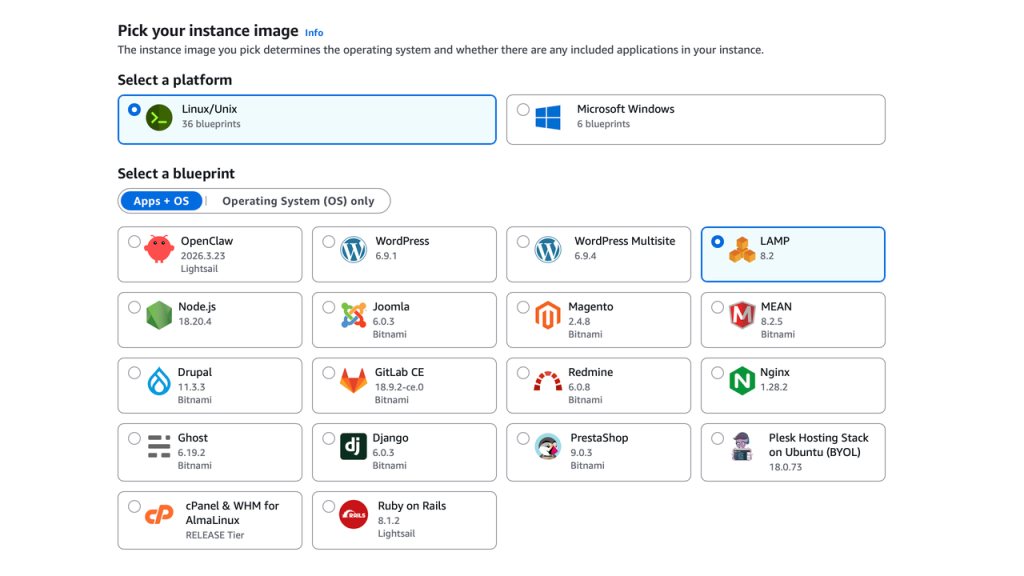
- Platform: Linux/Unix
- Blueprint: LAMP (PHP 8)
- Plan: 4 GB RAM / 2 vCPU / 80 GB SSD ($20/month)
Once the instance is running, go to the Networking tab and attach a static IP. Do this before anything else. All your domains will point to this one IP address permanently, so if it changes, everything breaks.
Also confirm that ports 22, 80, and 443 are open in the Lightsail firewall. Those are the only three you need.
SSH into your instance using the bitnami username:
ssh -i ~/.ssh/your-key.pem bitnami@YOUR_STATIC_IPRetrieve the auto-generated MariaDB root password and save it somewhere safe:
cat $HOME/bitnami_application_passwordStep 2: Create a Database for Each WordPress Site
Static sites need no database, only your WordPress sites do. So for our example, we only need to create two database. If you have more site or custom applications which needs database, you can create the database’s accordingly.
Connect to MariaDB using the Bitnami binary — not the system mysql command:
/opt/bitnami/mariadb/bin/mysql -u root -pThen create an isolated database and a dedicated user for each WordPress site:
CREATE DATABASE wp_site1
  CHARACTER SET utf8mb4 COLLATE utf8mb4_unicode_ci;

CREATE USER 'wp_user_site1'@'localhost'
  IDENTIFIED BY 'StrongPassword1!';

GRANT ALL PRIVILEGES ON wp_site1.*
  TO 'wp_user_site1'@'localhost';

-- Repeat for site2, site3 etc.

FLUSH PRIVILEGES;
EXIT;
Pro Tips: Never share a database user between sites. If one site is compromised, isolated users stop the damage from spreading.
Step 3: Install Redis for WordPress Object Caching
Object caching stores database query results in memory, so WordPress doesn’t run the same queries on every page load. Redis is the best tool for this job.
The PHP Redis extension requires build tools to compile. Install those first — skipping this step is the most common reason the Redis installation fails:
sudo apt-get update
sudo apt-get install -y autoconf build-essential

sudo apt-get install -y redis-server
sudo /opt/bitnami/php/bin/pecl install redis
Edit the php.ini file to enable the redistribution extension. If you are using WordPress sites, you may want to enable imagick module also in this step as you would need it later for WordPress.
sudo nano /opt/bitnami/php/etc/php.ini

--Add the below two lines in the file at the bottom

extension=imagick.so
extension=redis.so
Open /etc/redis/redis.conf and set these values:
bind 127.0.0.1
maxmemory 256mb
maxmemory-policy allkeys-lru
Binding Redis to 127.0.0.1 means it only accepts connections from the same server — never from the internet. maxmemory can be configured according to the need of your application and number of WordPress sites. Please adjust that accordingly to your need.
Start Redis and restart Apache to pick up the new PHP extension:
sudo systemctl enable redis-server

sudo systemctl start redis-server

sudo /opt/bitnami/ctlscript.sh restart apache
Now let’s verify if Redis is running properly:
redis-cli ping # → PONGWe will give each WordPress site its own Redis database number (0, 1, 2…) and a unique cache key prefix. This keeps the caches completely separate even though they share the same Redis instance.
Step 4: Create Site Directories and Install WordPress
Now it’s time to start creating the directories for the sites and loading the content. Create a folder for each site under the web root:
--replace site1, site2 etc with your site name

sudo mkdir -p /opt/bitnami/apache/htdocs/site1
sudo mkdir -p /opt/bitnami/apache/htdocs/site2
sudo mkdir -p /opt/bitnami/apache/htdocs/site3   # static
sudo mkdir -p /opt/bitnami/apache/htdocs/site4   # static
Download WordPress once and copy it to each WordPress site folder:
cd /tmp
wget https://wordpress.org/latest.tar.gz
tar -xzf latest.tar.gz

sudo cp -r wordpress/* /opt/bitnami/apache/htdocs/site1/
sudo cp -r wordpress/* /opt/bitnami/apache/htdocs/site2/
Set the correct ownership and permissions. Bitnami’s Apache runs as the daemon group:
sudo chown -R bitnami:daemon /opt/bitnami/apache/htdocs/site1/
sudo find /opt/bitnami/apache/htdocs/site1/ -type d -exec chmod 775 {} \;
sudo find /opt/bitnami/apache/htdocs/site1/ -type f -exec chmod 644 {} \;
# Repeat for site2
For static sites, just upload your HTML, CSS, and JS files directly into their folders and set the same ownership. If you have any other custom applications, you can also load it into the respective folders.
Step 5: Configure wp-config.php for Each WordPress Site
Copy the sample config and edit it:
sudo cp /opt/bitnami/apache/htdocs/site1/wp-config-sample.php \
        /opt/bitnami/apache/htdocs/site1/wp-config.php
sudo nano /opt/bitnami/apache/htdocs/site1/wp-config.php
Set the database credentials, a unique table prefix, and the Redis settings. You can edit these values based on the database’s created in Step 2:
-- Update the parameters from the Database created for the site

define( 'DB_NAME',     'wp_site1' );
define( 'DB_USER',     'wp_user_site1' );
define( 'DB_PASSWORD', 'StrongPassword1!' );
define( 'DB_HOST',     'localhost' );

$table_prefix = 'site1_';

define( 'WP_CACHE',          true );
define( 'WP_REDIS_HOST',     '127.0.0.1' );
define( 'WP_REDIS_PORT',     6379 );
define( 'WP_REDIS_DATABASE', 0 );        // Use 1 for site2, 2 for site3 etc.
define( 'WP_CACHE_KEY_SALT', 'site1_' ); // Unique per site

define( 'WP_SITEURL', 'https://site1.com/' );
define( 'WP_HOME',    'https://site1.com/' );

define( 'DISALLOW_FILE_EDIT', true );
Generate a fresh set of security keys for each site from https://api.wordpress.org/secret-key/1.1/salt/ and paste them in the wp-config file. Then lock down the file:
sudo chmod 640 /opt/bitnami/apache/htdocs/site1/wp-config.phpYou need to repeat this step for each WordPress website which you are hosting on this server.
Step 6: Set Up Apache Virtual Hosts
This is the core of the whole setup. Each domain gets two config files in /opt/bitnami/apache/conf/vhosts/ — one for HTTP and one for HTTPS.
Important: At this stage your SSL certificates don’t exist yet. Point the HTTPS vhost to Bitnami’s built-in dummy certificate so Apache can restart without errors. You’ll swap in the real certificates after running the SSL tool in Step 8.
Here’s the HTTP vhost for site1:
sudo nano /opt/bitnami/apache/conf/vhosts/site1.com-vhost.conf<VirtualHost *:80>
ServerName site1.com
ServerAlias www.site1.com
DocumentRoot /opt/bitnami/apache/htdocs/site1
<Directory "/opt/bitnami/apache/htdocs/site1">
Options -Indexes +FollowSymLinks
AllowOverride All
Require all granted
</Directory>
ErrorLog /opt/bitnami/apache/logs/site1-error.log
CustomLog /opt/bitnami/apache/logs/site1-access.log combined
</VirtualHost>And the HTTPS vhost, We will be using the dummy cert for now as we have not created the SSL certificate for the site till now:
sudo nano /opt/bitnami/apache/conf/vhosts/site1.com-https-vhost.conf<VirtualHost *:443>
ServerName site1.com
ServerAlias www.site1.com
DocumentRoot /opt/bitnami/apache/htdocs/site1
SSLEngine on
# Temporary — replaced in Step 8
SSLCertificateFile /opt/bitnami/apache/conf/bitnami/certs/tls.crt
SSLCertificateKeyFile /opt/bitnami/apache/conf/bitnami/certs/tls.key
<Directory "/opt/bitnami/apache/htdocs/site1">
Options -Indexes +FollowSymLinks
AllowOverride All
Require all granted
</Directory>
ErrorLog /opt/bitnami/apache/logs/site1-ssl-error.log
CustomLog /opt/bitnami/apache/logs/site1-ssl-access.log combined
</VirtualHost>Create identical pairs of files for site2, site3, and site4, by changing the ServerName, DocumentRoot, and log file names each time.
Once all vhost files are in place, test and restart:
sudo /opt/bitnami/apache/bin/httpd -t     # → Syntax OK
sudo /opt/bitnami/ctlscript.sh restart apache
Step 7: Point Your Domains to the Server
In the Lightsail console, go to Networking and create a DNS Zone for each domain. In each zone, add two A records:
| Record | Name | Points To |
|---|---|---|
| A | @ | Your static IP |
| A | www | Your static IP |
All four domains point to the same IP. Apache’s virtual hosts handle routing each domain to the right folder.
You get up to 6 DNS Zone free with AWS Lightsail account, so you can easily host up to 6 sites. If you have more than 6 sites, you can also keep the DNS with your Domain registrar, while hosting the sites on AWS Lightsail.
Update the nameservers at your domain registrar to the Lightsail nameservers shown in each DNS zone. DNS propagation takes between 15 minutes and a few hours.
Wait until each domain resolves correctly before moving to the next step— Let’s Encrypt needs to reach your server over HTTP to verify ownership.
Step 8: Issue SSL Certificates With bncert-tool
Bitnami ships its own SSL tool that wraps Let’s Encrypt and updates Apache automatically. Run it once per domain:
sudo /opt/bitnami/bncert-toolWhen prompted, enter the domain and www variant, and choose to enable the HTTP to HTTPS redirect and www to non-www redirect. Repeat for each domain.
The tool places the real certificates in /opt/bitnami/apache/conf/. Confirm the filenames:
ls /opt/bitnami/apache/conf/*.crtNow update each HTTPS vhost file to replace the dummy cert paths with the real ones:
sudo nano /opt/bitnami/apache/conf/vhosts/site1.com-https-vhost.confSSLCertificateFile /opt/bitnami/apache/conf/site1.com.crt
SSLCertificateKeyFile /opt/bitnami/apache/conf/site1.com.keyRepeat for each domain, then test and restart Apache one final time:
sudo /opt/bitnami/apache/bin/httpd -t
sudo /opt/bitnami/ctlscript.sh restart apache
Every site now serves valid HTTPS with auto-renewing Let’s Encrypt certificates.
Step 9: Finish Installing WordPress and Enable Redis Caching
Install WP-CLI to manage WordPress from the command line:
curl -O https://raw.githubusercontent.com/wp-cli/builds/gh-pages/phar/wp-cli.phar
chmod +x wp-cli.phar && sudo mv wp-cli.phar /usr/local/bin/wp
Run the WordPress installer for each site:
sudo -u bitnami wp \
  --path=/opt/bitnami/apache/htdocs/site1 \
  core install \
  --url=https://site1.com \
  --title="Site 1" \
  --admin_user=youradmin \
  --admin_password=SecurePass! \
  --admin_email=you@email.com
Then install and enable the Redis Object Cache plugin:
sudo -u bitnami wp --path=/opt/bitnami/apache/htdocs/site1 \
  plugin install redis-cache --activate

sudo -u bitnami wp --path=/opt/bitnami/apache/htdocs/site1 \
  redis enable
Verify the connection:
sudo -u bitnami wp --path=/opt/bitnami/apache/htdocs/site1 redis status
# Expected: Status: Connected | Database: 0 | Prefix: site1_
Repeat for site2 or all the WordPress site you have in your installation. Static sites does not need this — they’re already live.
Quick Verification Checklist
Run these commands to confirm everything is working:
sudo /opt/bitnami/ctlscript.sh status   # All services running
redis-cli ping                           # → PONG
sudo /opt/bitnami/apache/bin/httpd -t   # → Syntax OK
curl -I https://site1.com               # → HTTP/2 200
curl -I https://site2.com               # → HTTP/2 200
curl -I https://site3.com               # → HTTP/2 200
curl -I https://site4.com               # → HTTP/2 200
With this, you have multiple sites hosted on AWS Lightsail LAMP stack. You can increase or decrease the number of sites as per your need. You can now start working on your sites and install your set of WordPress Tools.
FAQ – Most asked questions by the readers
Can I host WordPress and static sites on the same Lightsail LAMP instance?
Yes. Apache virtual hosts let you serve any type of site from the same server. WordPress sites need PHP and a database. Static sites are just files in a folder — no PHP, no database, no extra setup required.
How is this different from WordPress Multisite?
WordPress Multisite runs multiple sites inside one WordPress installation, sharing the same themes, plugins, and database. The approach in this guide keeps every site completely independent — separate files, separate databases, separate caches. You can run entirely different applications side by side.
How many sites can I run on one Lightsail LAMP instance?
It depends on traffic, not just site count. The 4 GB plan handles two to four WordPress sites with moderate traffic comfortably. Monitor CPU and memory in the Lightsail console. If you’re regularly above 80% CPU, upgrade your plan or move busier sites to their own instance.
Does each site get its own SSL certificate?
Yes. bncert-tool issues a separate Let’s Encrypt certificate for each domain. Each certificate renews automatically every 60 to 90 days. You don’t need to do anything after the initial setup.
What happens to my sites if I stop and restart the instance?
As long as you’ve attached a static IP, your server address doesn’t change. All services restart automatically. The only risk is if you accidentally install the system apache2 package — that can conflict with Bitnami’s Apache. Stick to Bitnami’s control script (sudo /opt/bitnami/ctlscript.sh) for all service management.




![[Genesis] How To Add Social Media Icons To Author Box](https://d1x1p7kfqyuao1.cloudfront.net/wp-content/uploads/2018/01/author-box-after-modifications-287x161.png)