A visitor lands on a page that doesn’t exist. What do they see? On most GeneratePress sites, a bare “Oops! That page can’t be found” and a lonely search box. That’s a dead end, and dead ends lose readers.
I’ve run MetaBlogue on GeneratePress for years, and the GeneratePress 404 page is one of those things you set up once and it quietly earns its keep. A good one catches the lost visitor, offers them a search, and puts a few recent posts in front of them so the trip wasn’t wasted.

Most guides tell you to buy GeneratePress Premium and drag blocks around. You don’t need to. In this guide I’ll build a proper custom 404 page using nothing but child theme code — a distinct title, a search box, and a list of recent posts — all in functions.php and one template file.
What is a 404 page?
A 404 page is the page a website shows when someone requests a URL that doesn’t exist, matching the HTTP “404 Not Found” status code. In WordPress, the theme’s
404.phptemplate controls what that page looks like.
The name comes from the server response code, not anything you name it. Every theme ships with a default 404, and GeneratePress is no exception — it’s just plain by design, which leaves the customization to you.
Why the default GeneratePress 404 page isn’t enough
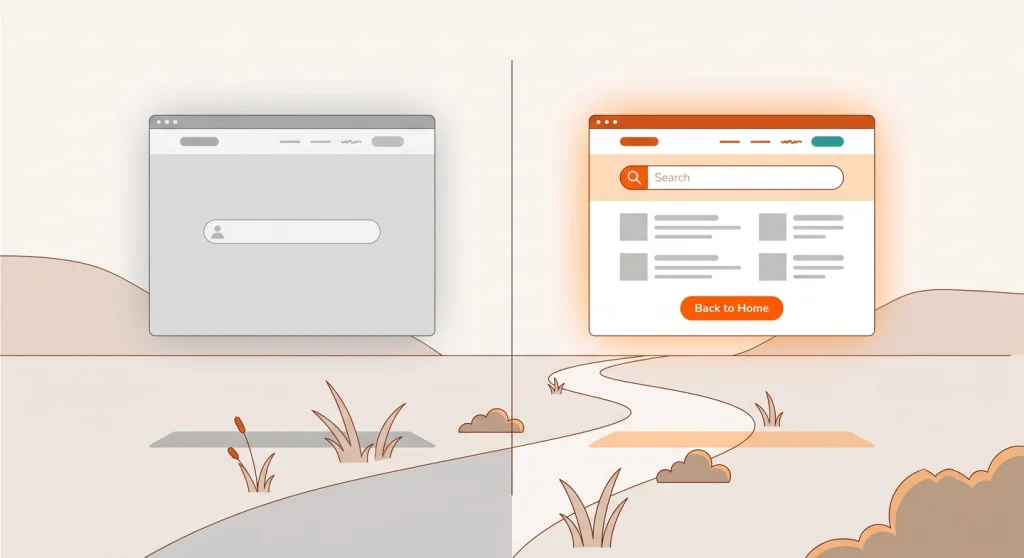
The default GeneratePress 404 page gives a visitor nowhere to go. It shows an apology and a search box, but no posts, no links, and no reason to stay — so most people just close the tab.
That’s a missed recovery. A visitor who hit a 404 was trying to read something on your site, which makes them one of the easiest people to win back if you hand them a next step. Adding recent posts and a clear search turns a dead end into a second chance.
There’s a second, quieter payoff too. When you give the 404 page a distinct title, it becomes trackable — you can spot broken links in your analytics later, because every 404 hit shows up under one recognisable name.
Two ways to customize it (and why I use code)
GeneratePress gives you two honest routes. Premium users can build a 404 with the Elements module by dragging blocks in the dashboard — it works, and if you already own Premium it’s fine. The other route, the one I’ll use here, is child theme code. It costs nothing, it’s version-safe, and it gives you exact control.
Everything below goes in your child theme. Never edit the parent theme — an update will wipe your changes. If you don’t have a css/ folder in your child theme yet, you’ll create one along the way.
The quick win — give your 404 a distinct title
Before the full layout, do this one small thing. GeneratePress exposes filters for the 404 heading and text, so you can rewrite them without touching a template — its hook and filter index lists every one available.
/**
 * Rewrite the on-page 404 heading.
 *
 * @param string $title Default 404 title.
 * @return string
 */
function mb_custom_404_title( $title ) {
    return '404 – Page Not Found';
}
add_filter( 'generate_404_title', 'mb_custom_404_title' );

/**
 * Rewrite the on-page 404 body text.
 *
 * @param string $text Default 404 text.
 * @return string
 */
function mb_custom_404_text( $text ) {
    return 'The page you are after has moved or never existed. Try a search, or pick up one of the recent posts below.';
}
add_filter( 'generate_404_text', 'mb_custom_404_text' );
Here’s the important nuance : The generate_404_title filter changes the heading on the page — the big H1 a reader sees. It does not change the browser tab title, which is what analytics tools actually record. To set that, filter the document title itself:
/**
 * Force a distinct browser/document title on 404s.
 * This is the title analytics tools record, which makes broken links easy to filter.
 *
 * @param array $parts Document title parts.
 * @return array
 */
function mb_404_document_title( $parts ) {
    if ( is_404() ) {
        $parts['title'] = '404 – Page Not Found';
    }
    return $parts;
}
add_filter( 'document_title_parts', 'mb_404_document_title' );
Now every 404 across your whole site reports under one clean name. That’s the hook that makes broken-link tracking possible — more on that at the end.
Build a full custom 404 template
The filters handle text. For a real layout — search, recent posts, a home button — you need a template file. Create a file named 404.php in your child theme root.
I’d base it on the parent theme’s 404.php so you keep GeneratePress’s structure and hooks intact, then swap the inner content for your own. Here’s the version I use:
<?php
/**
 * Custom 404 template — MetaBlogue (GeneratePress child theme).
 * Based on the GeneratePress parent 404.php. Keep the core hooks in place.
 *
 * @package GeneratePress_Child
 */

get_header();
?>
<div <?php generate_do_attr( 'content' ); ?>>
    <main <?php generate_do_attr( 'main' ); ?>>
        <?php do_action( 'generate_before_main_content' ); ?>

        <article class="inside-article mb-404">
            <header class="mb-404__header">
                <h1 class="mb-404__title"><?php esc_html_e( '404 – Page Not Found', 'generatepress-child' ); ?></h1>
                <p class="mb-404__lead">
                    <?php esc_html_e( 'The page you are after has moved or never existed. Try a search, or pick up one of the recent posts below.', 'generatepress-child' ); ?>
                </p>
            </header>

            <div class="mb-404__search">
                <?php get_search_form(); ?>
            </div>

            <section class="mb-404__recent" aria-label="<?php esc_attr_e( 'Recent posts', 'generatepress-child' ); ?>">
                <h2 class="mb-404__subhead"><?php esc_html_e( 'Recently published', 'generatepress-child' ); ?></h2>
                <?php
                $mb_recent = new WP_Query(
                    array(
                        'posts_per_page'      => 5,
                        'post_status'         => 'publish',
                        'ignore_sticky_posts' => true,
                        'no_found_rows'       => true,
                    )
                );

                if ( $mb_recent->have_posts() ) :
                    echo '<ul class="mb-404__list">';
                    while ( $mb_recent->have_posts() ) :
                        $mb_recent->the_post();
                        ?>
                        <li><a href="<?php the_permalink(); ?>"><?php the_title(); ?></a></li>
                        <?php
                    endwhile;
                    echo '</ul>';
                    wp_reset_postdata();
                endif;
                ?>
            </section>

            <div class="mb-404__cta">
                <a class="mb-404__button" href="<?php echo esc_url( home_url( '/' ) ); ?>">
                    <?php esc_html_e( 'Back to the homepage', 'generatepress-child' ); ?>
                </a>
            </div>
        </article>

        <?php do_action( 'generate_after_main_content' ); ?>
    </main>
</div>
<?php
do_action( 'generate_after_primary_content_area' );

generate_construct_sidebars();

get_footer();
A few things worth pointing out. The WP_Query pulls your five newest posts straight into the page, so the visitor always has somewhere fresh to click. I set no_found_rows to true because we’re not paginating, which skips an unnecessary database count and keeps the page fast. And get_search_form() reuses your theme’s own search styling, so it matches everything else with zero effort.
If you’d rather surface categories than recent posts — handy if your archives are the category and tag pages you’ve already optimized for SEO — swap the WP_Query block for a wp_list_categories() call.
Style the 404 page
The template outputs clean HTML with class names. Now give it some spacing and a branded button. GeneratePress styles should load only where they’re used, so this CSS goes in its own file and loads on the 404 page alone.
Create css/404.css in your child theme:
/* ===========================================
   404 page — metablogue.com
   Mobile-first. Colours from editor-color-palette.
   =========================================== */

.mb-404 {
    max-width: 640px;
    margin: 0 auto;
    padding: 2rem 1rem;
    text-align: center;
}

.mb-404__title {
    margin-bottom: 0.5rem;
}

.mb-404__lead {
    margin-bottom: 1.5rem;
}

.mb-404__search {
    margin-bottom: 2.5rem;
}

.mb-404__recent {
    margin-bottom: 2rem;
    text-align: left;
}

.mb-404__list {
    margin: 0;
    padding: 0;
    list-style: none;
}

.mb-404__list li {
    padding: 0.5rem 0;
    border-bottom: 1px solid rgba(0, 0, 0, 0.08);
}

.mb-404__button {
    display: inline-block;
    padding: 0.75rem 1.5rem;
    border-radius: 4px;
    background-color: var(--wp--preset--color--primary, #D64F15);
    color: #fff;
    text-decoration: none;
}

.mb-404__button:hover,
.mb-404__button:focus {
    background-color: var(--primary-dark, #b83e10);
}

@media (min-width: 768px) {
    .mb-404 {
        padding: 3rem 1rem;
    }
}
Then enqueue it — but only on the 404 template, so no other page carries the extra weight:
/**
 * Enqueue 404 page styles on the 404 template only.
 */
function mb_enqueue_404_styles() {
    if ( ! is_404() ) {
        return;
    }
    wp_enqueue_style(
        'mb-404',
        get_stylesheet_directory_uri() . '/css/404.css',
        array( 'parent-style' ),
        '1.0.0'
    );
}
add_action( 'wp_enqueue_scripts', 'mb_enqueue_404_styles' );
The if ( ! is_404() ) return; guard is the part I never skip. It means this CSS never loads on a normal page — a small habit that keeps a site quick as it grows.
Make the 404 page work for you

A pretty 404 is nice. A useful one does two jobs.
First, it recovers visitors. The recent-posts list gives every lost reader a live link to click, which is far more effective than an apology and a dead search box. It’s the same instinct behind a good internal linking strategy — never leave the reader without an obvious next step.
Second, that distinct document title I set earlier turns your 404 page into a tracking tool. Because every broken URL now reports under “404 – Page Not Found,” you can open Google Analytics, filter for that title, and see exactly which dead links your visitors are hitting — and which of your own pages sent them there. The custom page and the broken-link hunt are two halves of the same job.
A custom GeneratePress 404 page takes one template file and a handful of filters — no Premium, no plugins. Give it a distinct title, a search box, and your recent posts, and a dead end becomes a soft landing that keeps readers on your site.
Set it up once this week. Then filter your analytics for that 404 title and start fixing the broken links it reveals.

FAQ’s about 404 Page Customization
How do I create a custom 404 page in GeneratePress?
Create a 404.php file in your GeneratePress child theme and add your own layout — a heading, a search form, and a recent-posts list. Base it on the parent theme’s 404.php to keep the core hooks, then style it with a CSS file enqueued only on the 404 template.
Can I customize the GeneratePress 404 page without Premium?
The GeneratePress 404 page can be fully customized without Premium using child theme code. A 404.php template plus a few filters in functions.php give you complete control over the title, text, and content, with no Elements module or paid add-on required.
How do I change the 404 page title in GeneratePress?
Use the generate_404_title filter in functions.php to change the heading readers see on the page. To change the browser tab title that analytics records, filter document_title_parts and set a distinct title when is_404() is true.
Where do I put the 404.php file in a child theme?
Place 404.php in the root of your child theme folder, alongside functions.php and style.css. WordPress automatically uses the child theme’s 404.php over the parent’s whenever a page isn’t found — no registration or extra setup needed.
Should a 404 page redirect to the homepage?
A 404 page should not auto-redirect to the homepage. That hides broken links from your analytics and confuses visitors who expected a specific page. It’s better to keep the 404 status, then offer a search box and helpful links so readers can find their own way.