A few weeks ago I asked myself whether MetaBlogue really needed a mobile app in 2026. The honest answer was no — a native app for a blog is a lot of cost for very little return. But the idea behind it, having an installable icon on the home screen and offline reading, that part I liked.
So I decided to turn MetaBlogue into a PWA instead. Everything was going fine until I hit one wall. I already run web push notifications through Gravitec, and a PWA also wants to register a service worker. Two pieces of code fighting over the same slot. If you’ve ever tried to add a PWA to a site that already has push, you’ve probably met the same problem.
In this article I’ll show you exactly how I turned my WordPress blog into a PWA with a small custom plugin — manifest, service worker, offline page, icons — and the one trick that lets it live happily next to an existing push provider instead of breaking it.
What is a PWA?
A PWA (Progressive Web App) is a normal website, built with HTML, CSS, and JavaScript, that can be installed to a phone or desktop home screen and work offline like a native app. It needs three things to qualify: HTTPS, a web app manifest, and a service worker.
Think of it as your existing site wearing an app costume. There’s no separate codebase, no App Store, no review queue. The same URL your readers already visit becomes installable, loads instantly on repeat visits, and keeps working when the connection drops.
That last point matters more than people expect. A service worker is a script the browser runs in the background, separate from your web pages, and it can intercept network requests to serve cached content. This is what powers offline reading and the instant repeat loads. Without it, you don’t have a PWA — you just have a website with an icon.
Why a PWA makes sense for a blog (and a native app usually doesn’t)
I went back and forth on this for a while. Here’s where I landed.
A native app has to be discovered, downloaded, and kept installed. Blog traffic doesn’t work that way — most of my readers arrive from Google or search and leave. Nobody opens the App Store to find a blog. So you’d be building two codebases and paying yearly developer fees to reach people who already had you in their browser.
A PWA gives you about 80% of the app benefits for roughly 10% of the effort. You keep one codebase, you keep all your SEO, and you skip the app stores entirely. For a content site, that trade is hard to argue with.
Here’s the honest comparison I worked from:
| Feature | Native app | PWA |
|---|---|---|
| Home-screen icon | Yes | Yes |
| Offline reading | Yes | Yes |
| Push notifications | Yes | Yes (Android + iOS 16.4+) |
| App Store presence | Yes | No |
| Keeps your SEO | No | Yes |
| Codebases to maintain | Two | One (your site) |
| Yearly cost | $99 Apple + Google fee | Effectively zero |
So be aware of the one real tradeoff. A PWA does not get you into the App Store or Play Store. If app-store discovery is your goal, a PWA won’t deliver it. For everything else a blog actually needs, it does.
What you need before you start
Three things, and the first is non-negotiable.
HTTPS — service workers only run on secure origins. If your site is already on https://, you’re set. Almost every host gives you free SSL now, so this is rarely a blocker. If you are still looking for guidance, I have a guide on how to enable SSL on WordPress.
A square logo — at least 512×512 pixels. You’ll generate the icon set from it.
Your brand colour — the hex code. Mine is MetaBlogue’s orange, #D64F15. This tints the address bar and splash screen.
That’s it. No build tools, no npm, no framework. I did this with a folder, a few files, and the WordPress plugins directory.
The problem nobody else warns you about: the service worker conflict
This is the part the other tutorials skip, and it’s the part that cost me an afternoon.
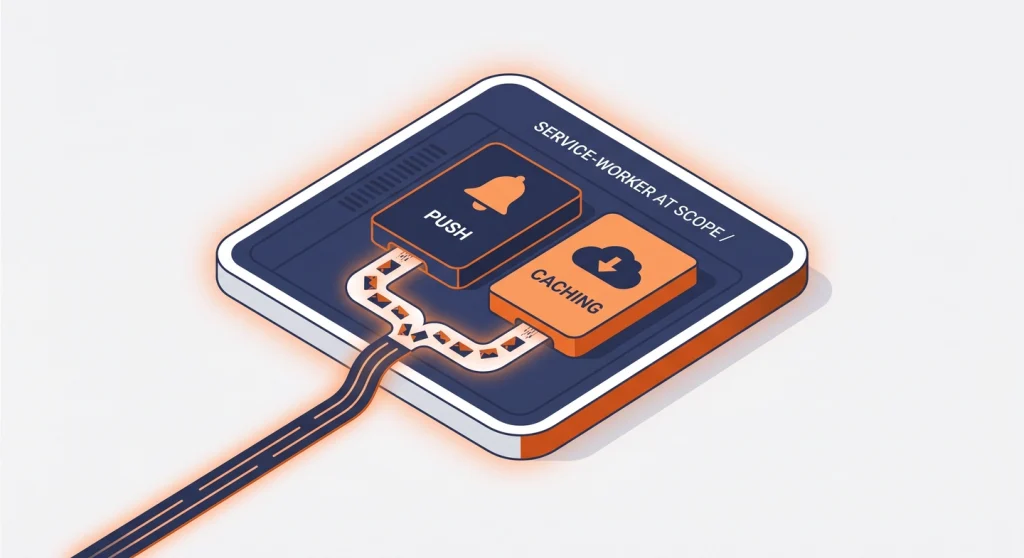
A browser allows only one service worker per scope. Scope basically means a URL path, and the root scope / covers your whole site. So if your push provider has already registered a service worker at /, and your PWA tries to register a second one at /, the second registration replaces the first.
In practice, that means one of two things breaks. Either your PWA caching never activates, or — worse — your push notifications stop working because your caching worker kicked the push worker out. On a site where I’d spent two years building a push subscriber list, that second option was a no-go.
I run Gravitec for push on MetaBlogue. When I opened its service worker file, push-worker.js in my site root, I found this waiting at the bottom:
self[`appKey`] = `...`;
self[`hostUrl`] = `https://cdn.gravitec.net/sw`;
self.importScripts(`${self[`hostUrl`]}/worker.js`);
// uncomment and set path to your service worker
// if you have one with precaching functionality (has oninstall, onactivate event listeners)
// self.importScripts('path-to-your-sw-with-precaching')
That commented line is the whole solution. Most decent push providers leave one. Instead of registering a competing service worker, you hand your caching logic to the push worker and let it importScripts your file. One registered service worker, two jobs.
The two jobs never collide because they listen for different events. Push uses push and notificationclick; caching uses install, activate, and fetch. They run inside the same worker without stepping on each other.
So the plan is simple. Build a normal PWA — manifest, caching worker, offline page, icons — but instead of registering the worker myself, I point the existing push worker at it with one line. Let’s build it.
Step 1 — Create the plugin folder and the manifest
I went with a small custom plugin rather than a third-party one. I like knowing exactly what runs on my site, and a blog PWA is genuinely simple. Create a folder called metablogue-pwa and inside it a file named manifest.webmanifest:
{
  "name": "MetaBlogue",
  "short_name": "MetaBlogue",
  "description": "Blogging tips, tools, and tutorials from MetaBlogue.",
  "start_url": "/?source=pwa",
  "scope": "/",
  "display": "standalone",
  "background_color": "#ffffff",
  "theme_color": "#D64F15",
  "icons": [
    { "src": "/wp-content/plugins/metablogue-pwa/icons/icon-192.png", "sizes": "192x192", "type": "image/png", "purpose": "any" },
    { "src": "/wp-content/plugins/metablogue-pwa/icons/icon-512.png", "sizes": "512x512", "type": "image/png", "purpose": "any" },
    { "src": "/wp-content/plugins/metablogue-pwa/icons/maskable-512.png", "sizes": "512x512", "type": "image/png", "purpose": "maskable" }
  ]
}
A couple of things worth knowing here. display: standalone is what strips the browser bar and makes it feel like an app. start_url has a ?source=pwa tag so I can see PWA launches separately in analytics. And theme_color is your brand colour — that’s the orange in my case.
If your push provider also uses the manifest, keep its fields too. Gravitec adds gcm_sender_id and gcm_user_visible_only, so I left both in mine as a legacy-push safety net. They do no harm.
One small gotcha before you move on. Some servers hand back a .webmanifest file with the wrong content type, and the browser then quietly ignores your manifest with no obvious error. On Apache I drop a tiny .htaccess into the plugin folder to fix it:
<IfModule mod_mime.c>
  AddType application/manifest+json .webmanifest
</IfModule>
On Nginx you’d add the same type to your server block instead. If DevTools already shows your manifest cleanly, you can skip this — but it’s the first thing I check when a manifest silently refuses to load.
Step 2 — Generate the icons
You need three sizes, and one of them has a catch. The maskable icon must fill the whole square with no transparent corners, because Android applies its own mask shape on top. If your logo has rounded transparent corners, they’ll show as gaps.
I generated mine from a single 512px logo using a few lines of Python with Pillow, but any image editor works. You want:
icon-192.pngandicon-512.png— your normal logo (purpose “any”)maskable-512.png— the same logo flattened onto a solid background square (purpose “maskable”)apple-touch-icon.png— 180×180, no transparency (iOS rounds the corners itself)
Drop them in an icons folder inside the plugin. That’s why the manifest paths point to icons/.
Step 3 — Write the caching service worker
This is the file that does the offline magic. Create sw-cache.js in the plugin folder. Notice it has no registration code — it’s meant to be imported, not registered on its own.
const CACHE_VERSION = 'mb-pwa-v1';
const RUNTIME = CACHE_VERSION + '-runtime';
const PLUGIN_BASE = '/wp-content/plugins/metablogue-pwa/';
const OFFLINE_URL = PLUGIN_BASE + 'offline.html';

self.addEventListener('install', (event) => {
  event.waitUntil(
    caches.open(CACHE_VERSION + '-precache')
      .then((cache) => cache.addAll([OFFLINE_URL, PLUGIN_BASE + 'icons/icon-192.png']))
      .then(() => self.skipWaiting())
  );
});

self.addEventListener('activate', (event) => {
  event.waitUntil(self.clients.claim());
});

self.addEventListener('fetch', (event) => {
  const req = event.request;
  if (req.method !== 'GET') return;

  const url = new URL(req.url);
  if (url.origin !== self.location.origin) return;
  // Never touch admin, login, or the REST API
  if (/^\/(wp-admin|wp-login\.php|wp-json)/.test(url.pathname)) return;

  // Page views: network-first, fall back to cache, then the offline page
  if (req.mode === 'navigate') {
    event.respondWith(
      fetch(req)
        .then((res) => {
          const copy = res.clone();
          caches.open(RUNTIME).then((c) => c.put(req, copy));
          return res;
        })
        .catch(() => caches.match(req).then((c) => c || caches.match(OFFLINE_URL)))
    );
    return;
  }

  // CSS, JS, fonts, images: serve cached instantly, refresh in the background
  if (['style', 'script', 'font', 'image'].includes(req.destination)) {
    event.respondWith(
      caches.open(RUNTIME).then((cache) =>
        cache.match(req).then((cached) => {
          const network = fetch(req).then((res) => { cache.put(req, res.clone()); return res; });
          return cached || network;
        })
      )
    );
  }
});
Let me explain the two strategies, because this is where most people get caching wrong.
Page navigations use network-first. When you open an article, the worker tries the network first so you always read the latest version, and only falls back to the cache if you’re offline. A blog where readers see stale posts is worse than no PWA at all.
Static assets use stale-while-revalidate. Your CSS, fonts, and images get served from cache instantly, then quietly updated in the background. This is what makes repeat visits feel fast. And notice I skip /wp-admin, /wp-login.php, and the REST API completely — caching those will break your dashboard.
Step 4 — Add the offline page
Create offline.html in the plugin folder. This is what readers see when they’re truly offline and hit a page you haven’t cached. Keep it simple and on-brand:
<!DOCTYPE html>
<html lang="en">
<head>
  <meta charset="utf-8">
  <meta name="viewport" content="width=device-width, initial-scale=1">
  <title>You're offline — MetaBlogue</title>
</head>
<body style="font-family:sans-serif;text-align:center;padding:60px 24px;background:#232b48;color:#fff;">
  <h1>You're offline</h1>
  <p>We can't reach MetaBlogue right now. Pages you've already opened still work.</p>
  <button onclick="location.reload()">Try again</button>
  <script>addEventListener('online', () => location.reload());</script>
</body>
</html>
That little script auto-reloads the moment the connection comes back, which is a nice touch readers don’t expect.

Step 5 — The plugin file that ties it together
Now the actual plugin. Create metablogue-pwa.php. Its only real job is to put the manifest link and a few meta tags into your page <head>. It does not register a service worker — that’s the whole point.
<?php
/**
 * Plugin Name: MetaBlogue PWA
 * Description: Makes the site installable and offline-capable.
 * Version: 1.0.0
 */
if ( ! defined( 'ABSPATH' ) ) exit;

function metablogue_pwa_head_tags() {
	$url = plugins_url( '', __FILE__ );
	echo '<link rel="manifest" href="' . esc_url( $url . '/manifest.webmanifest' ) . '">';
	echo '<meta name="theme-color" content="#D64F15">';
	echo '<link rel="apple-touch-icon" href="' . esc_url( $url . '/icons/apple-touch-icon.png' ) . '">';
	echo '<meta name="apple-mobile-web-app-capable" content="yes">';
	echo '<meta name="apple-mobile-web-app-title" content="MetaBlogue">';
}
add_action( 'wp_head', 'metablogue_pwa_head_tags', 1 );
I hook it at priority 1 on purpose. That makes sure my manifest link is the first one on the page, so it wins if any other plugin tries to add its own.
I trimmed the snippet above to the part that matters. My real metablogue-pwa.php adds two more small pieces. The first is a dismissible “Install MetaBlogue” banner that listens for the browser’s beforeinstallprompt event and shows a tidy on-brand button instead of the default mini-infobar. It hides itself once the app is installed and snoozes for two weeks if a reader closes it, so it never nags. The second is the health check I’ll cover in the next step.
Upload the whole metablogue-pwa folder to wp-content/plugins/ and activate it like any plugin.
Step 6 — The one line that makes it all work
This is the magic line from earlier. Open push-worker.js in your site root and uncomment the placeholder, pointing it at your caching worker:
self.importScripts('/wp-content/plugins/metablogue-pwa/sw-cache.js');
That’s it. Your push provider’s worker now loads your caching logic alongside its push logic. One service worker, both features, zero conflict. If you don’t use a push plugin at all, you’d instead register sw-cache.js yourself with a small script — but if you already have push, ride its worker. It’s cleaner.
There’s one thing to watch. Some push plugins regenerate their service worker when you re-save their settings, which can wipe your imported line. To catch that, I added a tiny health check to my plugin that reads push-worker.js and shows an admin warning if the line ever goes missing. When you test this, you’ll appreciate having it — it turns a silent failure into a ten-second fix. Push is never affected either way; only offline caching pauses.
Step 7 — Test it

Open Chrome DevTools and check three things.
- Application → Manifest — your name, icons, and theme colour should all show up with no errors.
- Application → Service Workers — your worker should be active. If you use push, confirm it still works.
- Network tab → tick Offline → reload — your branded offline page should appear.
On mobile Chrome or Edge, the plugin’s install banner appears once the browser decides the site is installable, and tapping it fires the native install prompt. On an iPhone, it’s Safari → Share → Add to Home Screen. Run a Lighthouse audit too if you want the official tick — it’ll confirm installability and flag anything missing. Google’s own web.dev PWA documentation is the reference I keep going back to when I want to check a detail.
Plugin or custom code — which should you pick?
If you’re not comfortable editing files, a plugin is the faster route. SuperPWA and PWA for WP & AMP both work and handle the manifest and worker for you. The catch is that two plugins each registering a service worker is exactly the conflict I described — so if you already have push, you still need to know about the importScripts hook regardless of which path you choose.
I went custom because I wanted full control over the caching rules and zero third-party bloat. For a blog, the custom plugin is genuinely small. But there’s no wrong answer here — pick the one that matches how much you want to touch code.

Wrapping up
Turning my WordPress blog into a PWA took an afternoon, and most of that afternoon was spent figuring out the service worker conflict — which you now get to skip. The build itself is small: a manifest, one caching worker, an offline page, a few icons, and one imported line.
If you already run push notifications, don’t replace them and don’t fight them. Hand your caching worker to theirs and let the two share a single registration. Start with the manifest, test in DevTools, and add the offline page once the install works. Then go install your own site on your phone — it’s a surprisingly good feeling to see your blog sitting on the home screen.
Frequently Asked Questions
Does a PWA work on iPhone?
A PWA works on iPhone, with limits. Since iOS 16.4, Safari supports home-screen install, offline mode, and even web push for installed PWAs. You add it through Share → Add to Home Screen rather than an automatic prompt, and a few advanced APIs are still restricted.
Will a PWA break my push notifications?
A PWA won’t break your push notifications if you avoid registering a second service worker. Use your push provider’s importScripts hook to load your caching worker into its existing one. The conflict only happens when two workers fight for the same scope.
Do I need HTTPS for a PWA?
HTTPS is required for a PWA, with no exceptions. Service workers only run on secure origins, so a site on plain HTTP cannot install or work offline. Almost every host offers free SSL now, so this is usually already handled.
Is a PWA better than a native app for a blog?
A PWA is usually the better choice for a blog because it keeps your SEO, needs only one codebase, and costs almost nothing. A native app makes sense mainly when you have paid content, a community, or a loyal daily audience worth the App Store presence.
Can I use a plugin instead of writing the code?
Plugins like SuperPWA can set up a PWA for you in minutes. They’re a good fit if you’d rather not edit files. Just remember that if you already run web push, you still need to handle the service worker conflict the same way.