Here’s a question I’d ask you to answer honestly: do you know what your AI coding assistant can read right now? Not what it writes — what it reads.

Most developers don’t. I didn’t either, until I started digging into it while setting up guardrails for my own projects. The uncomfortable answer is that tools like Claude Code, Cursor, and GitHub Copilot can read almost any file in your project folder — including the .env file holding your database password, your Stripe key, and that WordPress application password you created last month.
So in this guide, I’ll show you how to protect secrets from AI coding tools — which files to lock down, the exact configuration for each major tool, and the honest limits of each approach. This is the security companion to my AI project guardrails guide: that article covered what AI writes into your project, and this one covers what it can read and leak out of it.
Table of Contents
Reading Secrets Is a Different Risk from Writing Them
When people think about AI and credentials, they usually picture the AI hardcoding an API key into a file and committing it to GitHub. That’s a real risk, and a secret scanner like gitleaks catches it.
But reading is a separate problem, and it’s sneakier. Your AI assistant doesn’t need to write a single bad line of code to expose a credential. It just needs to open the wrong file while gathering context for a task.
Think about how these tools work. You ask for help debugging a connection issue, the agent explores your project to understand it, and your .env file is sitting right there in the project root. Unless you’ve told the tool otherwise, that file is fair game.

What Happens When an AI Tool Reads Your .env File?
Let’s define the problem properly before fixing it.
Protecting secrets from AI coding tools means blocking AI assistants from reading credential files like
.env, so passwords and API keys never enter the AI’s context or leave your machine. It’s separate from preventing committed secrets — this is about controlling what the AI can see, not what it writes.
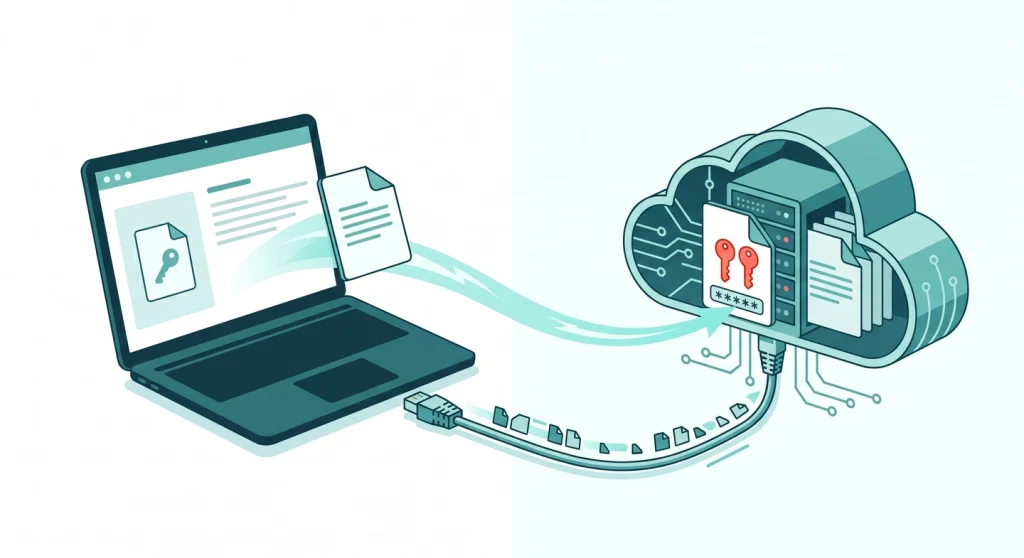
When an AI tool reads a file, the contents become part of the prompt sent to the model provider’s servers. Your secrets travel over the network, sit in the model’s context window for the rest of the session, and may be retained on the provider’s side for a period that depends on your plan — API traffic is typically kept for a limited abuse-monitoring window, while consumer chat products may use conversations for training depending on your settings.
That’s three exposure points from one innocent file read. And here’s the part that surprised me: security researchers have documented coding agents loading .env files into memory automatically, and real incidents where agents included credential files in uploads without being asked. This isn’t theoretical.
Why .gitignore Won’t Save You
This is the most common misconception I see, so let’s clear it up first.
A .gitignore file controls what Git commits to your repository — it does not stop any software on your machine from reading files. AI coding agents read directly from your filesystem, so a file excluded from version control is still fully visible to them. If your protection plan for secrets starts and ends with .gitignore, your AI assistant can read every one of them.
Some tools do use .gitignore as a hint for what to skip when indexing your project. But that’s a courtesy, not a boundary. For an actual boundary, each tool needs its own configuration — which is exactly what we’ll set up next.
How to Block Each AI Tool from Reading Your Secrets
Each major tool has its own mechanism, and they’re not equally strong. Here’s the landscape:
| Tool | Mechanism | Where | Strength |
|---|---|---|---|
| Claude Code | Permission deny rules | .claude/settings.json | Enforced for file reads |
| Cursor | .cursorignore file | Project root | Best-effort |
| GitHub Copilot | Content exclusion | GitHub repo/org settings | Business/Enterprise only |
| Windsurf | .codeiumignore file | Project root | Best-effort |
Let’s set up each one.
Claude Code — Permission Deny Rules
Claude Code uses a permission system with explicit deny rules. Create a .claude/settings.json file in your project root:
{
  "permissions": {
    "deny": [
      "Read(./.env)",
      "Read(./.env.*)",
      "Read(./secrets/**)",
      "Read(./**/credentials.json)"
    ]
  }
}
Deny rules block Claude from reading those files as context during a session. The official Claude Code settings documentation covers the full syntax, including rules for blocking edits and shell commands too.
I’d suggest adding these rules at the user level as well (~/.claude/settings.json), so every project you open gets the protection — not just the ones where you remembered to add the file.
Cursor — The .cursorignore File
Cursor reads a .cursorignore file from your project root, using the same syntax as .gitignore:
.env
.env.*
secrets/
*.pem
*.key
Files listed here are excluded from indexing and AI context. Though, be aware of the catch: Cursor’s own documentation describes this as best-effort protection. An agent running shell commands can still cat a file that the index ignores. It raises the bar; it doesn’t seal the room.
GitHub Copilot — Content Exclusion
Copilot takes a different approach. Content exclusion for GitHub Copilot is configured in your repository or organisation settings on github.com, not in a project file — and it’s only available on Copilot Business and Enterprise plans. Free and individual Pro users don’t get this control, which means individual developers need to rely on the off-disk strategies later in this article.
If you do have a Business plan, go to your repository settings → Copilot → Content exclusion, and add patterns like **/.env and **/secrets/**. The GitHub content exclusion documentation lists the full pattern syntax and which Copilot features respect it.
Windsurf — The .codeiumignore File
Windsurf follows the same pattern as Cursor: a .codeiumignore file in your project root with .gitignore-style syntax. It also respects your existing .gitignore patterns automatically, which is a nice touch. The same best-effort caveat applies.

The Honest Truth: Ignore Files Are Best-Effort
I won’t pretend these configurations make you bulletproof, because they don’t.
Here’s the gap: most AI coding agents can run shell commands. An ignore file stops the tool’s file-reading features, but an agent that runs cat .env in a terminal — because you approved a broad shell permission, or because auto-run is on — walks right past it. Vendors are honest about this when you read the fine print; the protections are described as best-effort, not guaranteed.
So treat ignore files and deny rules the way you treat a lock on an internal door. Worth having, genuinely useful, but not the only thing standing between your secrets and the outside world.
Two habits close most of the remaining gap. First, keep auto-approve modes off in any project containing real credentials — review shell commands before they run. Second, if you know an AI session has already read a secret, rotate that key. It takes five minutes and removes the doubt entirely.
What About System Environment Variables?
Setting a secret as a system environment variable is safer than a plaintext .env file — but it’s not a complete fix. Moving a credential out of your project folder and into your shell profile, your ~/.zshrc or ~/.bash_profile, means an AI tool exploring your project finds nothing. The passive file read that this whole article warns about has nothing left to grab.
So why isn’t this the answer? Same reason ignore files aren’t. An agent with shell access inherits your shell’s environment, so it can run printenv or echo $STRIPE_KEY and read the value straight out of memory. Shell access walks past a system env var exactly the way it walks past .cursorignore.
There’s a second catch I’d flag too. A secret exported globally in your shell profile is visible to every process on your machine — every project, every AI session, in every repo you open. A project-scoped .env at least keeps the exposure to one folder. So a global env var quietly trades a narrow risk for a broad one.
The useful way to think about it is a ladder, lowest rung to highest:
- Plaintext
.envfile — the weakest. A readable file sitting in your project. - System environment variable — better. Off disk, so passive reads find nothing, but a shell-capable agent can still dump it and the global scope widens exposure.
- Runtime injection from a vault — the strongest, and the one worth climbing to.
That top rung is really just environment variables done right — injected only when your app launches, never left sitting in the shell your agent shares. It’s simpler to set up than it sounds, which is where we’re headed next.
The Stronger Fix: Keep Secrets Off Your Disk
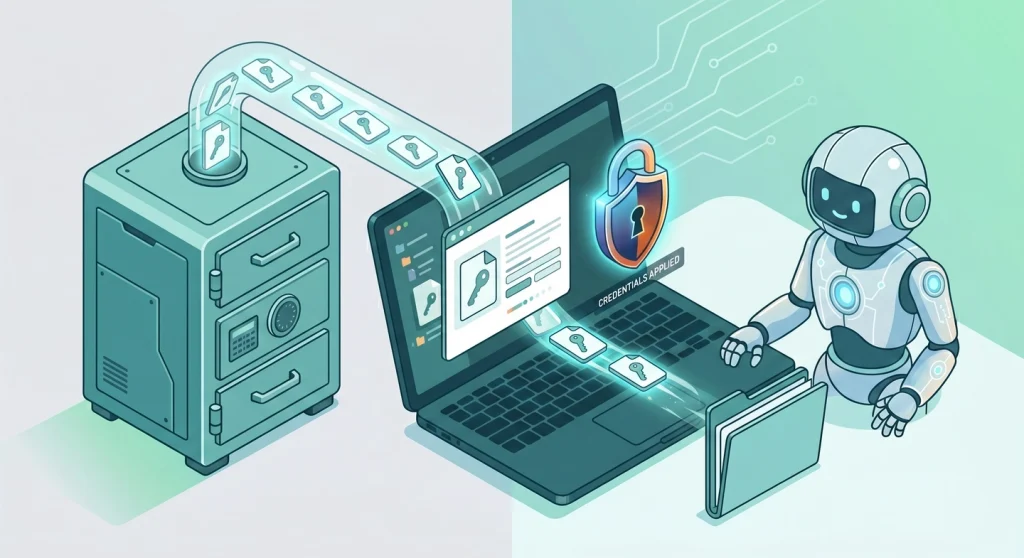
Ignore files and env vars both limit what the AI can read but the better long-term play is making sure there’s nothing worth reading.
The simplest version is the .env.example pattern. Keep a committed .env.example listing variable names with placeholder values, and tell your AI (in your AGENTS.md or CLAUDE.md) to read that file whenever it needs to know what variables exist. The AI gets the structure it needs to write correct code — it never needs the real values.
The stronger version is runtime secret injection. Tools like the 1Password CLI, Doppler, and Infisical store your secrets in an encrypted vault and inject them into your app’s process only at launch. Your .env file then contains references — something like op://Work/Stripe/api_key — instead of actual credentials. An AI tool reading that file learns nothing useful.
In practice, this is the setup I’d recommend working towards. The ignore rules take five minutes and you should do them today. The vault migration takes an afternoon, and after it’s done, the question “can my AI read my secrets?” stops mattering — there are no secrets on disk to read.
Watch Your MCP Servers Too
There’s one more exposure path that almost nobody covers: the connectors you plug into your AI tools.
MCP (Model Context Protocol) servers give AI agents new abilities — web fetching, database access, file operations beyond the project folder. Each one widens what your agent can reach, and a poorly built or malicious server can become an exfiltration channel. Researchers have already documented real-world cases of MCP integrations being used to steal credentials, SSH keys, and tokens.
The risk compounds with prompt injection — hidden instructions planted in content your AI reads, like a webpage it fetches or a file in a dependency. A poisoned instruction can tell the agent to read your credentials file and send the contents somewhere, and an agent with both file access and network access has everything it needs to comply.
You don’t need to avoid MCP servers — I use them myself. But apply three checks before connecting one: install only from publishers you can verify, question any server that wants both filesystem and network access, and never grant a server more scope than the task needs. I’m working on a full MCP setup guide for the AI-Powered Blogging series that goes deeper into evaluating servers before you connect them.

Your 15-Minute Security Setup
Let’s turn all of this into a checklist you can finish today:
- Add deny rules or ignore files for your AI tools —
.claude/settings.jsondeny rules for Claude Code,.cursorignorefor Cursor, content exclusion if you’re on Copilot Business. - Create a
.env.exampleand add a rule to your AGENTS.md telling the AI to read it instead of.env. - Turn off auto-approve modes in projects that hold real credentials.
- Rotate any key an AI session has already read — when in doubt, rotate.
- Plan the vault migration — 1Password CLI or Doppler — for a free afternoon this month.
The first three steps take about fifteen minutes combined. That small investment closes the most common exposure paths, and pairs naturally with the instruction files and pre-commit hooks from the guardrails guide to give you proper defence-in-depth: control what the AI writes, control what it reads, and verify everything before it ships.
Frequently Asked Questions
Can AI coding tools read my .env file?
Yes — by default, most AI coding tools can read any file in your project folder, including .env files. Claude Code, Cursor, and similar agents explore your project to gather context, and credential files are included unless you explicitly block them with deny rules or ignore files.
Does .gitignore stop AI tools from reading my files?
No. A .gitignore file only controls what Git commits to version control — it does not restrict filesystem access. AI coding agents read files directly from your disk, so a git-ignored .env file is still fully readable. Use tool-specific controls like .cursorignore or Claude Code deny rules instead.
How do I stop Claude Code from reading my .env file?
The way to stop Claude Code from reading .env files is a permission deny rule. Add "Read(./.env)" and "Read(./.env.*)" to the permissions.deny array in .claude/settings.json. Add the same rules to ~/.claude/settings.json to cover every project on your machine.
Are ignore files enough to protect my secrets from AI?
No — ignore files are best-effort protection, not enforcement. An AI agent with shell access can still read blocked files through terminal commands. For stronger protection, keep secrets out of project files entirely using a runtime injection tool like the 1Password CLI or Doppler, so your .env contains only vault references.
Is it safer to use system environment variables instead of a .env file?
System environment variables are safer than a plaintext `.env` file, but not by much. Moving a secret into your shell profile keeps it out of your project folder, so an AI tool scanning your project finds nothing. But an agent with shell access can still read it by running `printenv` or `echo $VARIABLE`, and a globally exported variable is exposed to every project on your machine. For real protection, use a runtime injection tool that loads secrets only when your app launches.
Should I rotate my API keys if an AI tool has read them?
Yes, rotate them. Once a secret enters an AI session, it has travelled to the provider’s servers and sat in the model’s context — you can’t un-send it. Rotating the key takes minutes and eliminates the exposure completely, so when in doubt, rotate.