I kept reading that MCP servers were “the hands” of an AI agent. Useful image but it told me nothing about how to actually get one running.
So I went and wired them into my own blog workflow — web search, web fetch, file access, the lot. And it turns out the hard part isn’t the setup. The setup is a config file and a restart. The hard part is knowing which servers to add, when a plain API call would do the job better, and how to tell a safe server from one that quietly reads your secrets.
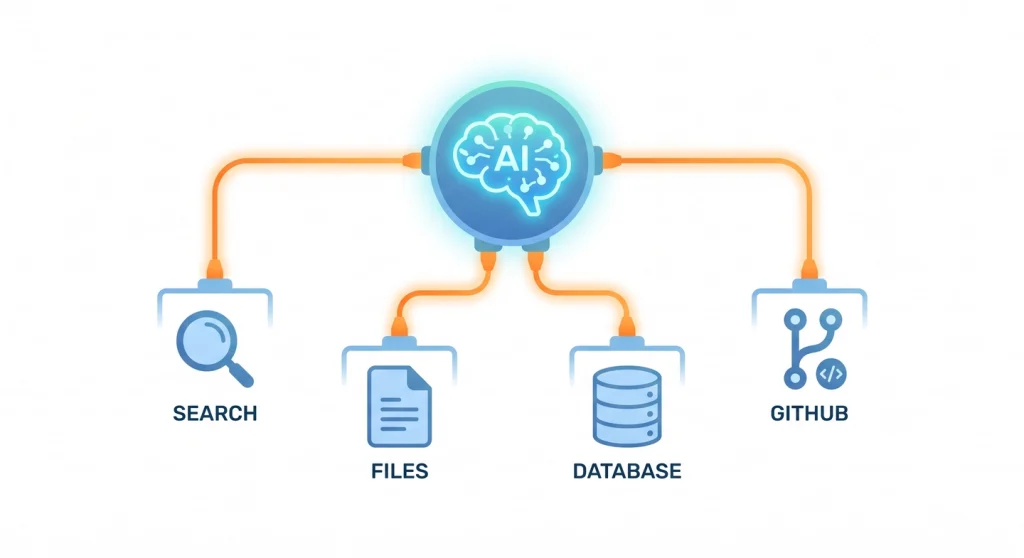
This guide is the piece I wanted when I started. I’ll cover what MCP is in plain terms, how to connect the common servers most bloggers actually need, how to vet a third-party server before you trust it, and how I stitched several servers into one content-research workflow. By the end you’ll have a working setup, not just a definition.
Table of Contents
What Is an MCP Server?
An MCP server is a small program that exposes a specific capability — like web search, file access, or a database — to an AI agent through the Model Context Protocol, an open standard for connecting AI tools to external systems. The agent calls the server when it needs that capability, and the server does the actual work.
The Model Context Protocol was introduced by Anthropic in late 2024 and is now an open specification that many AI tools support. Think of it as a universal adapter. Before MCP, every tool that wanted to give an AI access to GitHub or a database had to build that connection from scratch. Now there’s one standard, so a server written once works across Claude Code, Claude Desktop, Cursor, and any other MCP-compatible client.
That’s the whole point. MCP standardises how AI agents connect to external tools the same way USB standardised how devices connect to computers. Before USB, every peripheral had its own port and cable. After it, one socket fit everything. MCP does that for AI capabilities — which means the server someone else built for Postgres or Google Drive just plugs into your setup.
If you’ve followed this series, this is the missing piece between AI skills and full agents. Skills teach the agent how to do a task. MCP servers give it the means to act on the outside world.
How MCP Servers Actually Work
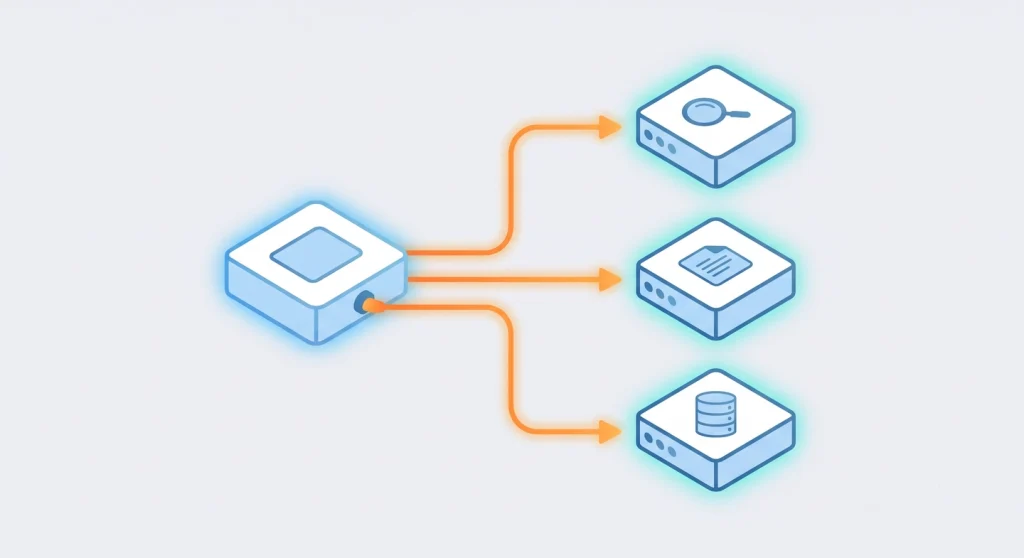
There’s a clean separation worth understanding before you start adding servers.
Your AI tool — Claude Code, say — is the client. Each MCP server is a separate process that advertises the tools it offers. When you ask the agent to “search the web for the latest WordPress caching benchmarks,” the agent looks at its connected servers, sees a web-search tool, and calls it. The server runs the search and hands back the results. The agent never touches the search engine directly. It just asks the server.
Servers come in two flavours, and the difference matters for setup:
- Local servers run on your own machine as a subprocess. The client launches them when it starts. Great for file access, local databases, and anything personal.
- Remote servers run as a web service somewhere else, and you connect over HTTP. Better for team tools, hosted APIs, and servers you don’t want to install locally.
Most of the servers a blogger needs day to day are local ones you launch through a single config file. Let’s set those up.

Prerequisites Before You Start
You don’t need much. Here’s the short list.
- An MCP-compatible client. I use Claude Code. If you haven’t set it up yet, my Claude Code setup guide walks through it. Claude Desktop and Cursor work too.
- Node.js (v18+) or Python (3.10+). Many community servers ship as
npxoruvxpackages, so the runtime needs to exist even if you never write a line of code. - API keys for any paid service you plan to connect — a search provider, GitHub, a database. Keep these somewhere safe, never pasted into a chat.
That’s genuinely it. No framework, no Docker unless a specific server asks for it.
How to Set Up MCP Servers — Step by Step
Here’s the process I follow every time I add a server. The exact file path differs slightly between clients, but the shape is identical.
Step 1: Find the server’s connection details
Every MCP server publishes how to launch it — usually a command and a set of arguments. For an npx-based server it looks like npx -y @some/mcp-server. The server’s README or the official servers repository tells you the exact command and which environment variables (like API keys) it needs.
Step 2: Add it to your client config
In Claude Code, the cleanest way is the command line:
claude mcp add web-search -- npx -y @some/web-search-mcp
For servers that need a key, pass it as an environment variable so it never lands in a shared file:
claude mcp add my-search --env SEARCH_API_KEY=your_key -- npx -y @some/web-search-mcp
Remote servers are even simpler — there’s no launch command, because the server already runs somewhere else. You hand the client a URL instead:
claude mcp add --transport http github https://api.githubcopilot.com/mcp/
GitHub’s official MCP server is a remote one, which means nothing extra runs on your machine and there’s no package to keep updated. Expect more big services to go this route.
If your client uses a JSON config instead, you’ll add a block under mcpServers with the same pieces — a name, then either a command with environment variables or a URL.
Step 3: Restart and verify
Restart the client so it picks up the new server. In Claude Code, run /mcp to see the connected servers and the tools each one exposes. If the server shows up with its tools listed, you’re done. If it doesn’t, jump to the troubleshooting section below — it’s almost always one of three things.
Step 4: Test with a real request
Don’t trust a green light. Ask the agent to do something that needs the server — “search for X,” “read the file at Y,” “list my open GitHub issues.” If it returns real results, the wiring works.
The MCP Servers Worth Adding First
You can drown in available servers. After a fair bit of trial and error, these are the ones I’d add before anything else for content work.
| Server | What it does | Why it earns its place |
|---|---|---|
| Web search | Live search results | Pulls current data the model’s training never saw |
| Web fetch | Reads a specific URL | Lets the agent read competitor articles and sources in full |
| Filesystem | Reads and writes local files | The agent can save drafts and read your project files |
| GitHub | Issues, PRs, repo files | Useful if your content or site lives in a repo |
| Database (Postgres/SQLite) | Queries your data | Pull post analytics or product data straight into a draft |
Start with web search and web fetch. For a blogger, those two alone change what the agent can do — it stops guessing about the current landscape and starts reading the actual top-ranking pages. Add the filesystem server next so it can save its output, and you have a genuine research-and-draft loop running.
One caution before your list grows, though. Every connected server announces its full tool list to the model on every session, so idle servers quietly eat your context budget. I ran the actual numbers in my token math comparison of skills and MCP — worth a look before you connect a tenth server you use twice a year.

MCP Servers vs Direct API Calls — When to Use Which
This tripped me up early, so it’s worth being clear. MCP isn’t always the right answer. Sometimes a plain API call is simpler.
Use an MCP server when the agent needs to decide on its own whether and when to use a capability across many different tasks. Web search is a perfect fit — the agent figures out mid-task that it needs to look something up, and the server is just there. You wire it once and forget it.
Use a direct API call when you have a fixed, scripted step that runs the same way every time. If your workflow always posts the finished draft to one endpoint at the end, a hardcoded API call is more predictable and easier to debug than routing it through an agent’s tool choice.
Here’s the rule I settled on. MCP shines for capabilities the agent reaches for dynamically; direct API calls win for fixed steps in a deterministic pipeline. The cost of MCP is a bit of setup and a server process running; the benefit is the agent picking the right tool at the right moment without you scripting every branch. For anything the agent should “just know how to do,” MCP earns its keep.
How to Evaluate a Third-Party MCP Server for Security
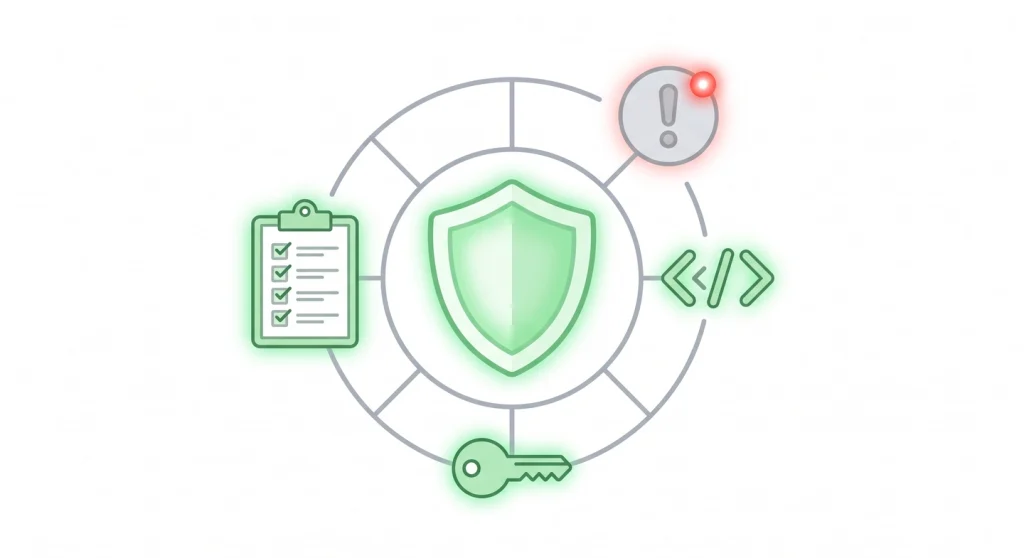
This is the part the quick-start guides skip, and it’s the part that matters most. An MCP server runs code on your machine and often holds your API keys. A careless or malicious one is a real risk — it can read files it shouldn’t, leak credentials, or follow instructions hidden in a web page it fetches.
Before I connect any server I didn’t write, I run it through this checklist:
- Who publishes it? Official servers from the protocol maintainers or the actual service (GitHub, a database vendor) are safest. An anonymous package with 11 downloads is not.
- Is the source open? I want to read, or at least skim, what it does. A closed-source server asking for broad permissions is a hard no.
- What does it actually access? A web-search server has no business touching your filesystem. If the requested scope is wider than the job, walk away.
- How does it handle keys? Keys should come from environment variables you control, never be hardcoded or sent anywhere but the intended service.
- Is it maintained? Recent commits and open issues being answered tell you someone’s still watching for problems.
There’s a subtler risk too: prompt injection through fetched content. If your agent reads a web page, that page could contain hidden text telling the agent to exfiltrate your data. The server itself can be perfectly honest and still be the pipe that carries an attack. This is exactly why the least-privilege approach from my piece on guardrails for AI projects applies to MCP — give each server the narrowest access that gets the job done, and nothing more.
If a server needs access to anything sensitive, read my deeper guide on protecting your secrets from AI coding tools before you connect it. Keeping .env files out of an agent’s reach is non-negotiable once MCP servers are in the picture.
A Real Example: Wiring MCP Into a Content Research Workflow
Let me show you the setup I actually run, because the abstract version never quite lands.
When I research a new article, I have three MCP servers doing the heavy lifting. Web search finds the current top-ranking pages for my keyword. Web fetch reads those pages in full so the agent can pull out what each one covers. Filesystem lets the agent write a gap-analysis file and the eventual draft to my project folder.
Here’s the loop in practice. I give the agent a topic and a primary keyword. It calls the search server, gets the top results, then fetches each one and builds a table of which subtopics every competitor covers and which they all miss. That table tells me where the article can stand out. The agent then drafts against that analysis and saves the file — all without me switching tools or copy-pasting between tabs.
The agent makes the calls; I make the editorial decisions. That division is the whole reason it works. The MCP servers handle the mechanical fetching and reading, which frees me to judge the angle, the voice, and whether a claim is actually true. None of this needs a custom-built server. Every piece here is a published, off-the-shelf MCP server I connected in a few minutes.
This is also where MCP and skills meet. The blog-editing skill holds my rules about structure and tone; the MCP servers give the agent the reach to gather the raw material those rules shape. Skills are the knowing, MCP is the doing.

Troubleshooting Common MCP Connection Issues
When a server won’t connect, it’s nearly always one of these. I’ve hit all three.
- Broken config syntax. A missing comma or bracket in the JSON config stops the whole thing loading. Validate the file before restarting.
- Wrong command or path. If the client can’t find
npx,uvx, or the server package, it silently fails to start. Check the runtime is installed and the command path is right. - Missing or wrong API key. Keys are case-sensitive and must sit in the environment block, not the arguments. A server that connects but every tool call fails usually means a bad key.
When something’s off, check the client logs first — Claude Code surfaces MCP errors, and the message almost always names the real problem. Restart fully after any config change; a half-reloaded client is a classic false alarm.
Bringing It Together
Setting up MCP servers is genuinely a five-minute job once you know the pattern: find the command, add it to your config, restart, test with a real request. The skill isn’t in the wiring. It’s in choosing the right servers, knowing when a plain API call is the better tool, and vetting anything third-party before you trust it with your machine.
Start small. Add a web-search and a web-fetch server, point your agent at a topic, and watch it pull real, current information into your work. Once that clicks, MCP stops being an abstract term and becomes the thing that turns a clever chatbot into an agent that actually does the legwork for you.
FAQ’s About MCP
What is an MCP server in simple terms?
An MCP server is a small program that gives an AI agent one specific capability — like web search, file access, or a database connection — through the open Model Context Protocol. The agent calls the server whenever it needs that capability, and the server does the real work and returns the result.
Do I need to know how to code to set up an MCP server?
No, you don’t need to code to connect existing MCP servers. Most common servers install through a single command and a config entry, and the agent handles the rest. You only need programming knowledge if you want to build a custom server from scratch for a capability no existing server provides.
Are MCP servers safe to use?
MCP servers are safe when you stick to official or open-source servers and limit each one’s access to what it genuinely needs. The risk comes from unvetted third-party servers that can read files or hold credentials they shouldn’t. Always check who publishes a server, whether the source is open, and what it accesses before connecting it.
What is the difference between an MCP server and an API?
MCP servers let an AI agent decide on its own when to use a capability across many tasks, while a direct API call is a fixed step you script into a pipeline. Use MCP for tools the agent reaches for dynamically, like web search, and direct API calls for predictable, repeating steps that always run the same way.
Which MCP servers should I set up first?
The most useful first servers for content work are web search and web fetch, which let your agent pull current information and read full pages. Add a filesystem server next so the agent can save drafts and read your project files. Together these three create a working research-and-draft loop.