For the first four parts of this series, I talked about how to prompt AI effectively, manage your tokens, and structure context so the AI stays sharp. All of that was preparation. Now we get to the tool that ties it all together – Claude Code.

Claude Code is where I do most of my real work — writing articles, managing my WordPress sites, building workflows that run without me babysitting every step. But when I first opened it, I’ll be honest, it felt like a lot. Terminal commands, permission prompts, configuration files. It took me a couple of sessions before the pieces clicked.
This guide is the walkthrough about getting started with Claude Code, I wish I’d had on day one. By the end, you’ll have Claude Code installed, understand how its permission system works, and know which interface to use for different tasks.
Table of Contents
What Is Claude Code?
Claude Code is Anthropic’s agentic coding tool that runs on your local machine and works directly with your files, terminal, and project structure. Unlike the Claude.ai chat interface where you copy-paste text back and forth, Claude Code reads your files, edits them in place, runs commands, and manages Git — all from a single conversation.
The key difference is agency. When you use Claude.ai in the browser, you’re having a conversation. You paste code in, get suggestions back, and manually apply the changes yourself. Claude Code skips that entire copy-paste loop. You describe what you want, and it does the work — reading the relevant files, making the edits, running the tests, and committing the changes.
I think of it as the difference between texting a contractor photos of your kitchen and asking for renovation advice, versus having that contractor actually standing in your kitchen with tools in hand.
Claude Code vs Claude.ai — When to Use Each
This confused me at first. I had a Claude Pro subscription and wasn’t sure why I’d need anything beyond the chat interface. The answer came down to what kind of work I was doing.
| Feature | Claude.ai (Chat) | Claude Code |
|---|---|---|
| How you interact | Browser chat window | Terminal, desktop app, VS Code, or web |
| File access | Manual uploads only | Reads your entire project automatically |
| Editing workflow | Copy-paste between chat and editor | Edits files directly on disk |
| Multi-step tasks | You drive each step manually | Agent plans and executes steps autonomously |
| Persistent memory | Per-conversation only | CLAUDE.md files persist across sessions |
| Tool access | Limited to chat capabilities | Terminal commands, Git, MCP servers, shell scripts |
Use Claude.ai when you’re thinking — brainstorming ideas, analysing a document someone sent you, drafting an email, or having an open-ended conversation where neither of you knows the answer yet.
Use Claude Code when you’re building — writing code, editing files, running commands, managing a project, or executing any multi-step workflow that involves your actual files on disk.
The subscription covers both. A single Pro plan at $20/month gives you access to Claude.ai chat, Claude Code, and the desktop app. You don’t pay extra for Claude Code — it’s part of the package.
How to Install Claude Code
The installation takes about two minutes. You need one of these before you start:
- Operating system: macOS 13.0+, Ubuntu 20.04+, Debian 10+, or Windows 10 with WSL
- Account: A Claude Pro ($20/month), Max ($100 or $200/month), Team, or Enterprise subscription — or an Anthropic Console account with API credits
If you prefer native installers rather than line commands, you can download the Claude Code from the official site.
On macOS or Linux
Open your terminal and run:
curl -fsSL https://claude.ai/install.sh | bash
That’s it. The native installer handles everything and auto-updates in the background.
If you prefer Homebrew:
brew install --cask claude-code
One thing to know — Homebrew installations don’t auto-update. You’ll need to run brew upgrade claude-code periodically to stay current.
On Windows
Open PowerShell and run:
irm https://claude.ai/install.ps1 | iex
I’d also recommend installing Git for Windows so Claude Code can use Bash as its shell tool. Without it, Claude Code falls back to PowerShell, which works but limits some functionality.
First Login
Once installed, open your terminal, navigate to any project folder, and type:
claude
The first time you run it, Claude Code prompts you to authenticate through your browser. Log in with your Claude account, and your credentials get saved to ~/.claude/ — you won’t need to log in again unless you switch accounts.

Four Ways to Use Claude Code
This surprised me when I started. Claude Code isn’t just a terminal tool — it runs in four different environments, and each one fits a different workflow.
1. Terminal CLI
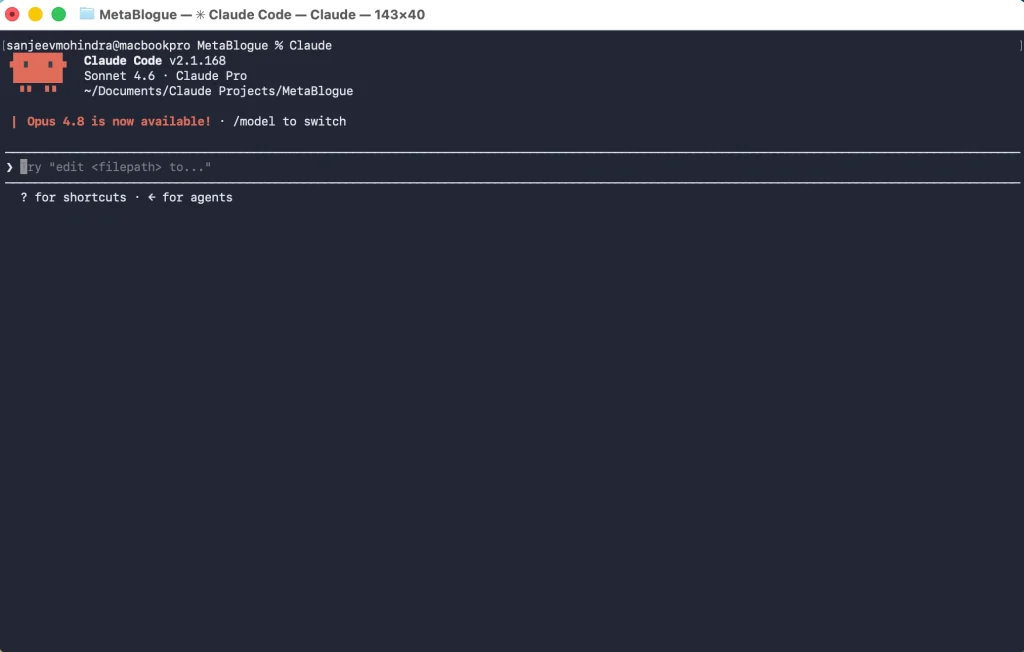
The original and still the most powerful option. You open your terminal, navigate to a project, and type claude. Everything happens in text — you describe tasks, Claude executes them, and you approve or reject changes as they come.
I use the terminal for focused, heads-down work. Research articles, running multi-step workflows, anything where I want Claude to work autonomously without distractions.
2. Desktop App
Anthropic released a fully redesigned desktop application in April 2026. This isn’t a simple terminal wrapper — it’s a dedicated workspace built for running multiple sessions at once.
The standout feature is parallel sessions. Each session gets its own isolated copy of your project through Git worktrees, so changes in one session don’t affect others until you commit. You can have one session writing an article while another reviews your CSS — both running side by side.
The desktop app also includes an integrated terminal, a built-in file editor, and a diff viewer for reviewing changes before accepting them.
3. VS Code Extension
If you already live in VS Code, the extension brings Claude Code into your editor as a side panel. You get a chat interface, checkpoint-based undo, file references with @ mentions, and the ability to review changes inline with your code.
I find this useful for coding tasks where I want to see my files and Claude’s suggestions in the same window. The extension loads quickly — three to five seconds even on modest hardware — and supports multiple conversations in separate tabs.
4. Web Interface
Claude Code is also available at claude.ai/code directly in your browser. This is handy when you’re on a machine where you haven’t installed the CLI, or when you want to kick off a task from your phone while you’re away from your desk.
The web version connects to your projects through cloud sessions, so you’re not limited to local files.
Which One Should You Pick?

If you’re new to Claude Code, start with the desktop app. It gives you all the power of the terminal CLI with a friendlier interface, visual diffs, and session management. Once you’re comfortable, you’ll naturally gravitate toward whichever interface fits your task — terminal for focused work, VS Code for coding, desktop for juggling multiple things.
Your First Session — What to Actually Do
Let me walk you through a practical first session. Open Claude Code in your project directory — whether that’s a blog, a WordPress theme, or a simple folder of files.
Step 1: Let Claude Explore
Your first message should let Claude understand what it’s working with:
what does this project contain?
Claude reads your files and gives you a summary. It doesn’t need you to upload anything — it automatically scans the directory structure and reads files as needed.
Step 2: Ask Something Specific
Now try a task that’s actually useful:
find all TODO comments in this project and list them with their file locations
Or if you’re working on a blog:
check my latest article draft for spelling errors and inconsistent heading levels
Be specific with your requests. “Help me with my blog” gives you vague suggestions. “Review the article in articles/my-post.md and flag any paragraphs longer than three sentences” gives you actionable results.
If you’ve been following this series, you’ll recognise this principle from how to write better AI prompts. The same rules apply here — context, specificity, and clear outcomes.
Step 3: Make a Change
Ask Claude to modify something:
add a meta description to the front matter of articles/my-post.md
Claude will show you the proposed change and ask for your approval before making it. You can review the diff, accept it, or ask for revisions. Nothing gets written to disk until you say yes.
Step 4: Work with Git
Claude Code handles Git conversationally:
what files have I changed since my last commit?
commit my changes with a descriptive message
You don’t need to memorise Git commands. Describe what you want in plain English, and Claude translates that into the right Git operations.
Choosing the Right Model
Claude Code gives you access to three models, and picking the right one affects both speed and cost:
| Model | Best for | Speed |
|---|---|---|
| Haiku | Quick, repetitive tasks — file renaming, simple edits, formatting | Fastest |
| Sonnet | Everyday work — writing, code changes, debugging, reviews | Balanced |
| Opus | Complex reasoning — architecture decisions, multi-file refactoring, deep analysis | Slowest but most capable |
Sonnet is the default, and it handles most tasks well. I switch to Opus when I need the AI to reason through something complex — like planning a full article outline or debugging a tricky WordPress hook. Haiku is great for batch tasks where speed matters more than depth.

Permission Modes — Your Safety Net
This is one of Claude Code’s most important features, and the one I’d pay the most attention to when getting started.

Claude Code uses a permission system that controls what the AI can and cannot do. Every time Claude wants to write a file, run a command, or take any action that changes something, it checks against your permission settings first.
There are five modes, but three matter most for daily use:
Normal Mode
The default. Claude asks for your permission before every potentially dangerous action — file writes, shell commands, anything that modifies your system. You approve each one individually.
I recommend staying in this mode for your first few sessions. It shows you exactly what Claude is doing at every step, which builds trust and helps you understand the tool’s behaviour.
Auto Mode
Claude uses its own risk assessment to decide what’s safe. Low-risk actions like reading files proceed automatically. Higher-risk actions still get flagged for your approval. Anthropic built a two-layer safety classifier that evaluates each action before execution.
I switch to auto mode when I’m running workflows I trust — like my blog writing process, where I know the steps and don’t need to approve every file read.
Plan Mode
Read-only. Claude can analyse your project, read files, and discuss plans, but it cannot modify anything. No file writes, no commands, no changes.
This is perfect for research and review tasks. I use plan mode when I want Claude to audit my code or review an article without any risk of unintended edits.
You can cycle through modes by pressing Shift+Tab during a session, or set your preferred mode when launching Claude Code.
Permission Rules for Fine-Grained Control
Beyond modes, you can define specific allow and deny rules for individual tools. This means you can auto-approve certain safe commands (like npm test or git status) while keeping everything else locked down.
Rules follow a strict order: deny → ask → allow. If a tool matches a deny rule, it’s blocked — no exceptions. If it matches an allow rule, it proceeds without prompting. Everything else falls through to the current mode’s default behaviour.
This is where the principle of least privilege comes in. Start with restrictive permissions and open them up gradually as you learn which actions you’re comfortable automating.
CLAUDE.md — Giving Claude Persistent Memory
Every time you start a new Claude Code session, the AI starts fresh. It doesn’t remember your preferences, your coding standards, or your project’s conventions from previous sessions.
CLAUDE.md fixes this. It’s a Markdown file you place in your project root that Claude Code reads automatically at the start of every session. Think of it as an onboarding document for your AI — it tells Claude what this project is, how it’s structured, and what rules to follow.
Here’s what mine looks like for MetaBlogue:
# CLAUDE.md

## Project Purpose
Content workspace for MetaBlogue (metablogue.com) blog articles.

## Structure
- articles/ — standalone blog posts (one .md file each)
- series/ — article series (one subfolder per series)

## Writing Rules
- Use the blog-writer skill for all articles
- Every article needs YAML front matter, body, FAQ, and image prompts
- Target audience: bloggers, WordPress developers, SEO learners

## Conventions
- Filenames: kebab-case (how-to-build-a-rest-api.md)
- One file per article — no versioned copies
That’s all it takes. Now every Claude Code session knows what MetaBlogue is, where files go, and what standards to follow — without me explaining it each time.
If you’ve been following this series, you’ll recognise this as progressive disclosure in action. The CLAUDE.md file gives Claude just enough context to start working effectively, without loading your entire project history into memory.
I’ll cover guardrail configuration files in much more depth in the next article in this series, including how to set up AGENTS.md for cross-tool compatibility and layer in automated checks.

Extending Claude Code with MCP
Out of the box, Claude Code can read files, write files, run terminal commands, and manage Git. But the real power comes when you connect it to external services through MCP — the Model Context Protocol.
MCP is an open protocol that lets Claude Code talk to external tools the same way USB lets devices talk to computers. Want Claude to search the web during research? Connect a web search MCP server. Need it to query your database? There’s an MCP server for that. GitHub, Slack, Figma, Sentry — all available as MCP connections.
I use MCP daily for my blog workflow. Web search and web fetch servers let Claude research topics, analyse competitor articles, and pull in current data — all without leaving the session.
Setting up MCP servers is straightforward. You define connections in your settings file, and Claude Code discovers them automatically. I’ll walk through the full setup process in Part 8 of this series, but for now, know that this extensibility is what transforms Claude Code from a smart text editor into a genuine workflow engine.
Pricing — What It Actually Costs
Claude Code is included with all paid Claude plans. You don’t pay separately for it — the same subscription that gives you Claude.ai chat also gives you Claude Code, the desktop app, and VS Code extension.
| Plan | Monthly cost | What you get |
|---|---|---|
| Pro | $20 | Claude Code access, all three models (Haiku, Sonnet, Opus), usage resets on 5-hour cycles |
| Max 5x | $100 | Higher usage limits — roughly 5x the Pro allocation |
| Max 20x | $200 | Highest individual limits — 20x the Pro allocation |
| Team | $100/seat (Premium) | Claude Code access, admin controls, team management |
| Enterprise | Custom pricing | 500K context window, HIPAA readiness, compliance tooling |
For most individual users, the Pro plan is enough to start. I ran my blog writing workflows on Pro for months before upgrading. The usage limits reset on a rolling 5-hour window, so even heavy sessions rarely hit the cap unless you’re running long, complex workflows back to back.
If you’re conscious about costs, the token management habits from Part 3 of this series apply directly here. Starting fresh sessions for new tasks, being specific with prompts, and using CLAUDE.md instead of repeating context — all of those reduce your token burn.
The API option (pay-per-token through the Anthropic Console) is there if you prefer usage-based pricing. Sonnet runs at $3 per million input tokens and $15 per million output tokens. But for most people reading this, the subscription is simpler and more predictable.
Getting Started Today
You don’t need to master every feature on day one. Here’s the three-step path I’d recommend:
- Install and explore. Run the installer, open Claude Code in a project folder, and spend 20 minutes just asking questions about your files. Get comfortable with the conversation flow.
- Create a CLAUDE.md file. Even a five-line file that describes your project saves you from repeating context every session. You can type
/initinside Claude Code and it will generate one for you based on your project structure. - Try one real task. Pick something you’d normally do manually — reviewing a draft, formatting a file, finding inconsistencies in your code — and let Claude handle it. Watch what it does, and adjust your instructions based on the results.
That’s enough for your first week. The tool gets more powerful as you layer in guardrails, skills, and MCP connections — and that’s exactly what the rest of this series covers.
Frequently Asked Questions
What is Claude Code?
Claude Code is Anthropic’s agentic coding tool that runs on your local machine and works directly with your project files. Unlike the Claude.ai browser chat, it reads your codebase, edits files in place, runs terminal commands, and manages Git operations — all from a conversational interface in the terminal, desktop app, VS Code, or web.
Do I need to know how to code to use Claude Code?
Claude Code is designed for developers, but non-technical users can be productive with it too. If you can navigate folders and type commands in a terminal, you can use Claude Code. The desktop app makes this even more accessible with a visual interface, file browser, and diff viewer that doesn’t require terminal experience.
How much does Claude Code cost?
Claude Code is included with all paid Claude subscriptions. The Pro plan at $20 per month gives you access to Claude Code along with all three models — Haiku, Sonnet, and Opus. Higher tiers (Max at $100 or $200/month) increase your usage limits but don’t unlock different features.
What is the difference between Claude Code and Claude.ai?
Claude.ai is a browser-based chat interface where you paste content and get responses. Claude Code runs locally and works directly with your files — it reads your project, makes edits on disk, runs commands, and handles Git. The practical difference is that Claude.ai requires you to copy-paste everything manually, while Claude Code eliminates that loop entirely.
Is Claude Code safe to use on my projects?
Claude Code includes a multi-layered permission system that controls what the AI can do. In the default Normal mode, every potentially dangerous action requires your explicit approval. You can further restrict access with Plan mode (read-only) or fine-tune permissions with allow and deny rules for specific tools. Nothing gets modified without your consent unless you explicitly enable auto mode.