Every image you upload to GeneratePress gets duplicated into multiple sizes. Upload a 3000px photo for a content area that’s only 770px wide, and you’re storing files nobody will ever see — while your server works harder than it needs to. Lets check how to optimize images for GeneratePress WordPress theme.
GeneratePress is one of the most used WordPress themes which keeps things lean by design but the theme can’t fix oversized uploads or missing thumbnail sizes. That part is on you.
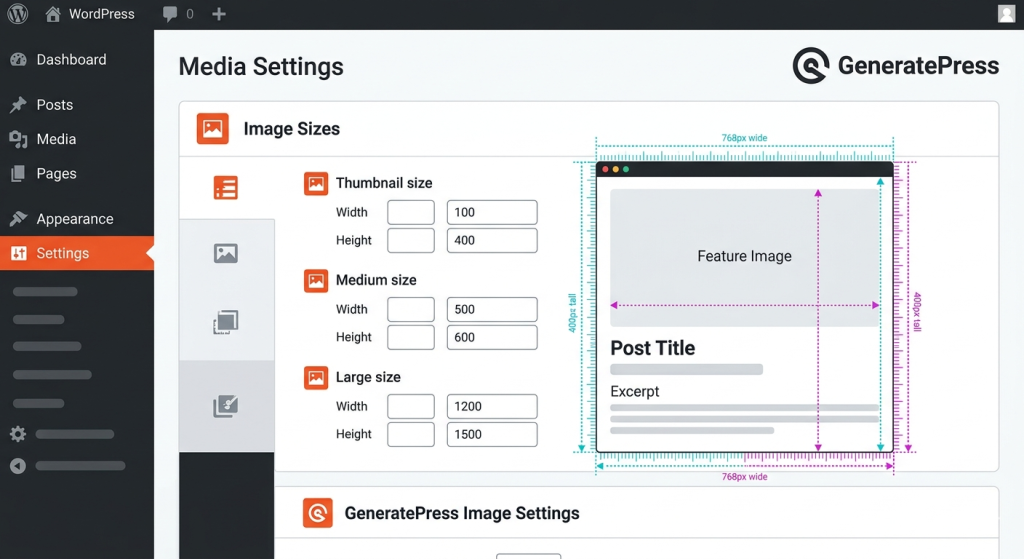
This guide shows you how to calculate the exact image widths your GeneratePress layout needs, register custom sizes in your child theme, and make them available inside the Gutenberg editor. Every code snippet is ready to paste into your functions.php.
Table of Contents
This Works for Every Image on Your Site
The technique you’ll learn here isn’t limited to blog post content images. It applies to any image area on your GeneratePress site — related posts grids, post navigation thumbnails, author boxes, archive listings, sidebar widgets, WooCommerce product grids, or any custom layout you build.
Even if you are using GeneratePress with WooCommerce, you can still follow this guide to optimize the product images on the site.
The principle is always the same: measure the rendered width of the container where the image appears, register a size that matches, and let WordPress handle the rest. Once you understand the approach, you can repeat it for any section of your site.
How GeneratePress Container Width and Padding Affect Your Images
Before picking image dimensions, you need to understand what controls the space your images actually fill. Three settings in GeneratePress determine your content area width.
Container Width
The container width is the maximum width of your entire page layout — content plus sidebar. GeneratePress defaults to 1200px. You’ll find this under Customizer → Layout → Container.
This outer boundary holds everything. But your images don’t stretch to fill it. The sidebar and padding eat into that space first.
Sidebar Width
GeneratePress uses a percentage-based sidebar. The default split is roughly 75% content / 25% sidebar, which works out to about 300px for the sidebar on a 1200px container.
You can adjust this under Customizer → Layout → Sidebars. If you run a no-sidebar layout on single posts, your content area gets the full container width minus padding.
Content Padding
Content padding is the breathing room between your text and the container edge. GeneratePress Premium lets you control this under Customizer → Layout → Container in the spacing options.
Default padding is typically 40px on each side for desktop. That means your content area loses 80px total from padding alone.
The Math That Matters
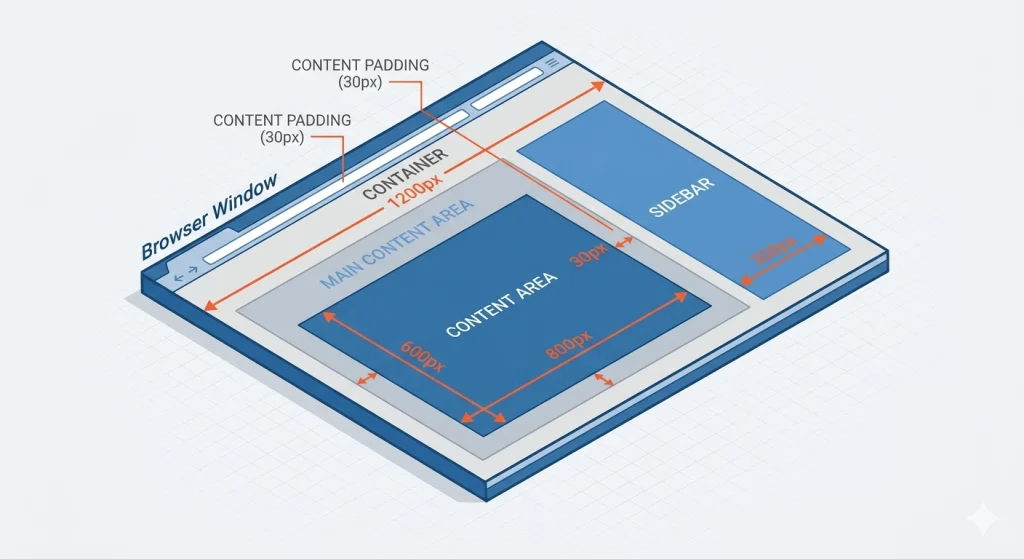
Here’s how these three values combine to give you the actual content width:
Content Width = Container Width − Sidebar Width − Separating Space − (Padding × 2)
With GeneratePress defaults:
Content Width = 1200 − 300 − 30 − (40 × 2)
Content Width = 1200 − 300 − 30 − 80
Content Width = 790px
For a no-sidebar layout:
Content Width = 1200 − 0 − 0 − (40 × 2)
Content Width = 1120px
Your numbers will differ if you’ve customised any of these settings. The formula stays the same.
Finding the Optimal Image Sizes for Your Blog Posts
The math above gives you a starting point. But the most reliable way to find your exact content width is to measure it directly in the browser.
Measure Your Actual Content Width
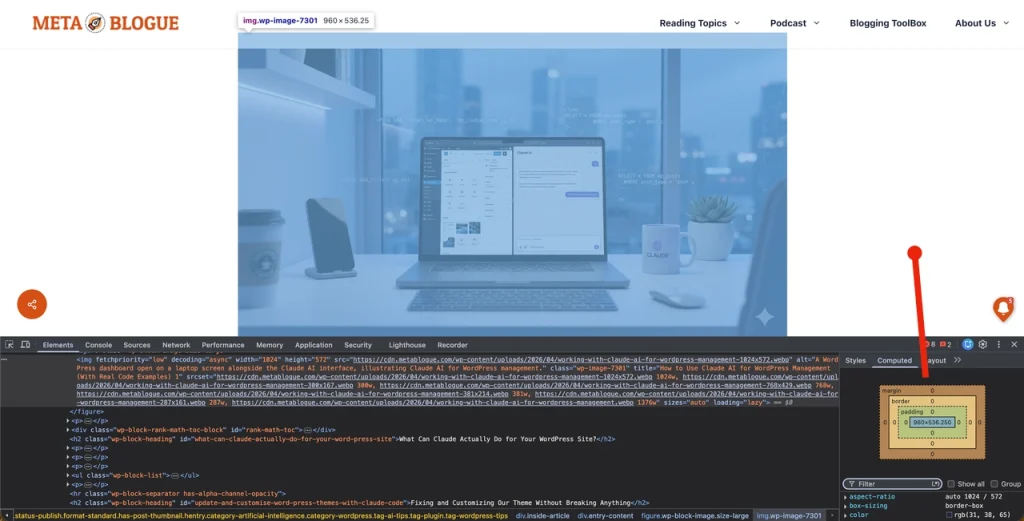
- Open a published blog post in Chrome or Firefox.
- Right-click inside the content area (on a paragraph of text) and select Inspect.
- The DevTools panel highlights the element. Look at the box model diagram at the bottom of the Styles panel.
- The blue center number is your actual content width in pixels.
Do this for every area where images appear on your site:
- A post with a sidebar — this gives you the narrower content width (typically 700–800px).
- A full-width page — this gives you the wider content width (typically 1100–1200px).
- Related posts grid — inspect a single card in the grid to find the thumbnail width.
- Post navigation section — measure the image area in your next/previous post links.
- Sidebar widgets — check the rendered width of images inside widget areas.
Each area has its own container width. Measure once, register a matching image size, and that section is optimised for good.
Featured Images Are Different
GeneratePress displays featured images at the content area width by default. But if you use the Page Header add-on or set featured images to display above the content container, they may stretch wider — up to your full container width.
Check your featured image settings under Customizer → Layout → Blog → Featured Images. The dropdown lets you pick which WordPress media size to use for archives and single posts separately.
What About Retina Displays?
Retina screens pack twice the pixels into the same physical space. A 780px content area on a retina MacBook actually renders 1560 physical pixels.
You have two choices:
- Upload at 2× your content width for razor-sharp images on retina screens. A 780px content area would need a 1560px image.
- Upload at 1× and accept a slight softness on retina screens. Most visitors won’t notice on photos. Text-heavy screenshots and diagrams show it more.
For most blogs, 1× is fine for photos and 2× is worth it for screenshots or infographics where sharpness matters.
Don’t Chase Pixel-Perfect Sizes — Use Aspect Ratios Instead
Here’s where most guides overcomplicate things. You don’t need images that match your content width to the exact pixel.
WordPress generates a srcset attribute for every image. This tells the browser about all available sizes, and the browser picks the closest match. If your content area is 790px and the nearest available image is 768px or 1024px, the browser handles the scaling cleanly.
Chasing exact pixel matches creates more problems than it solves. Odd scaling ratios — like forcing a 600px image into a 247px space — cause sub-pixel blurriness. Round numbers and standard ratios avoid this.
Use Aspect Ratios to Find Close-Enough Sizes
Instead of obsessing over exact pixel widths, pick a standard aspect ratio and calculate sizes from that.
Common aspect ratios for blog images:
| Aspect Ratio | Use Case | Example Sizes |
|---|---|---|
| 16:9 | Featured images, hero banners | 1200×675, 800×450, 400×225 |
| 3:2 | Blog post photos, thumbnails | 1200×800, 768×512, 300×200 |
| 4:3 | Screenshots, product images | 1200×900, 800×600, 400×300 |
| 1:1 | Author avatars, social sharing | 600×600, 300×300, 150×150 |
The Aspect Ratio Formula
To calculate the height for any width at a given ratio:
Height = Width ÷ Ratio Width × Ratio HeightFor a 16:9 image at 800px wide:
Height = 800 ÷ 16 × 9 = 450pxFor a 3:2 image at 768px wide:
Height = 768 ÷ 3 × 2 = 512pxPick the ratio that fits your design, then generate sizes at your key breakpoints. The browser handles the rest through srcset.

A Practical Size Set for GeneratePress
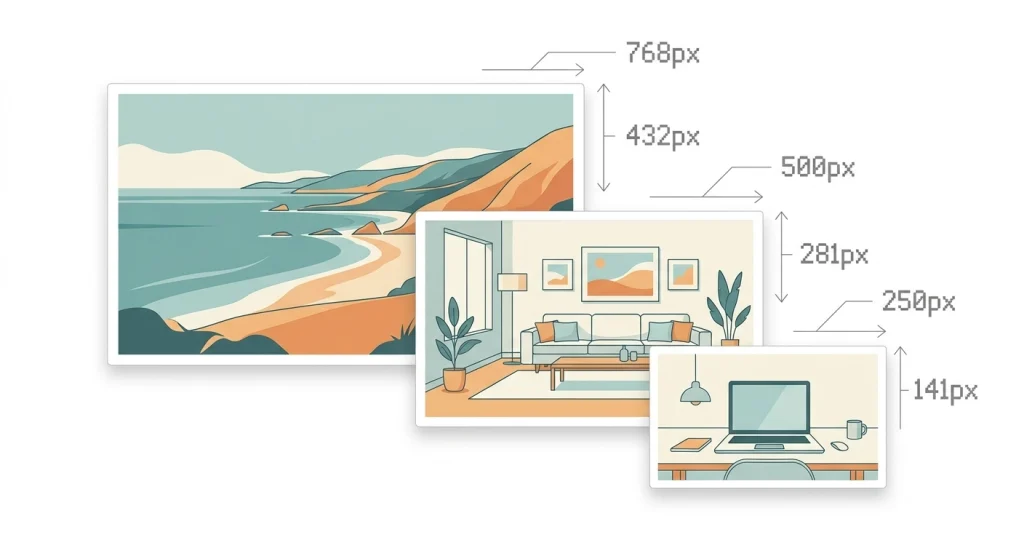
Based on GeneratePress defaults (1200px container, sidebar layout), here’s a sensible set of custom sizes:
| Name | Width | Height | Ratio | Purpose |
|---|---|---|---|---|
blog-featured | 1200 | 675 | 16:9 | Featured image, full-width pages |
blog-content | 800 | 450 | 16:9 | In-content images, sidebar layout |
blog-thumbnail | 400 | 225 | 16:9 | Archive thumbnails, related posts |
blog-nav | 150 | 100 | 3:2 | Post navigation, small widgets |
These four sizes cover most GeneratePress layouts — blog content, archives, related posts grids, post navigation links, and sidebar widgets. Measure any additional image areas on your site using DevTools, calculate a close-enough size at a standard ratio, and add it to the set.
Register Custom Image Sizes in WordPress
Now that you know which sizes you need, register them in your GeneratePress child theme. Add this code to your child theme’s functions.php.
Step 1: Add the Image Sizes
add_action( 'after_setup_theme', 'metablogue_custom_image_sizes' );
function metablogue_custom_image_sizes() {
    add_image_size( 'blog-featured', 1200, 675, true );
    add_image_size( 'blog-content', 800, 450, true );
    add_image_size( 'blog-thumbnail', 400, 225, true );
    add_image_size( 'blog-nav', 150, 100, true );
}
The add_image_size() function takes four arguments:
- Name — a unique slug for the size (no spaces, lowercase).
- Width — maximum width in pixels.
- Height — maximum height in pixels.
- Crop —
truefor hard crop (exact dimensions),falsefor proportional scaling.
Setting crop to true ensures every image hits its exact target dimensions. This keeps your layout consistent, especially on archive pages where mismatched heights look messy.
Crop position defaults to center-center. If you need a different anchor (e.g., for portraits where faces sit near the top), pass an array instead:
add_image_size( 'blog-featured', 1200, 675, array( 'center', 'top' ) );Valid positions: left, center, right for horizontal and top, center, bottom for vertical.
Step 2: Regenerate Existing Thumbnails
New image sizes only apply to images uploaded after you add the code. Your existing media library won’t have these sizes yet.
Option A — Use a plugin:
Install and run Regenerate Thumbnails. It processes every image in your library and creates the new sizes. Deactivate the plugin after it finishes — you don’t need it running permanently.
Option B — Use WP-CLI (if you have terminal access):
wp media regenerate --yesThis is faster and doesn’t require a plugin. It regenerates all sizes for every attachment in your media library.
A Note on Storage
Each custom size creates an additional file per uploaded image. Four custom sizes on a library of 500 images means 2,000 extra files. Keep your custom sizes lean — only register what you actually use.

Add Custom Image Sizes to the Gutenberg Editor
Registering sizes makes WordPress generate the thumbnails. But those sizes won’t appear in the Gutenberg Image block dropdown unless you explicitly expose them.
Make Sizes Selectable in Image Blocks
Add this filter to your child theme’s functions.php:
add_filter( 'image_size_names_choose', 'metablogue_custom_image_size_names' );
function metablogue_custom_image_size_names( $sizes ) {
    return array_merge( $sizes, array(
        'blog-featured'  => __( 'Blog Featured (1200×675)' ),
        'blog-content'   => __( 'Blog Content (800×450)' ),
        'blog-thumbnail' => __( 'Blog Thumbnail (400×225)' ),
        'blog-nav'       => __( 'Blog Nav (150×100)' ),
    ) );
}
The image_size_names_choose filter hooks into the size picker that appears in the Image block sidebar. After adding this code, your custom sizes show up alongside the default Thumbnail, Medium, Large, and Full Size options.
How to Use in the Gutenberg Editor
- Insert an Image block in your post.
- Upload or select an image from the media library.
- In the block sidebar on the right, find the Resolution dropdown (under the image preview).
- Select Blog Content (800×450) for in-post images, or Blog Featured (1200×675) for wider layouts.
If a size doesn’t appear in the dropdown, the uploaded image is smaller than that size. WordPress won’t upscale images — it only generates sizes smaller than or equal to the original upload dimensions.
Set a Default Featured Image Size
You can also tell GeneratePress which size to use for featured images across your site. Go to Customizer → Layout → Blog → Featured Images and pick your custom size from the dropdown under both Archives and Single Posts.
Alternatively, set it with a filter in functions.php:
add_filter( 'generate_page_header_default_size', function() {
    return 'blog-featured';
} );
Complete functions.php Code
Here’s all the code in one block. Paste this into your GeneratePress child theme’s functions.php:
/**
 * Custom image sizes for GeneratePress blog layout.
 */
add_action( 'after_setup_theme', 'metablogue_custom_image_sizes' );
function metablogue_custom_image_sizes() {
    add_image_size( 'blog-featured', 1200, 675, true );
    add_image_size( 'blog-content', 800, 450, true );
    add_image_size( 'blog-thumbnail', 400, 225, true );
    add_image_size( 'blog-nav', 150, 100, true );
}

add_filter( 'image_size_names_choose', 'metablogue_custom_image_size_names' );
function metablogue_custom_image_size_names( $sizes ) {
    return array_merge( $sizes, array(
        'blog-featured'  => __( 'Blog Featured (1200×675)' ),
        'blog-content'   => __( 'Blog Content (800×450)' ),
        'blog-thumbnail' => __( 'Blog Thumbnail (400×225)' ),
        'blog-nav'       => __( 'Blog Nav (150×100)' ),
    ) );
}

add_filter( 'generate_page_header_default_size', function() {
    return 'blog-featured';
} );
After adding this code, run Regenerate Thumbnails on your existing media library. Every new upload from that point forward generates these sizes automatically.
Frequently Asked Questions
What is the default content width in GeneratePress?
With default settings (1200px container, right sidebar, 40px padding), the content area is approximately 790px wide. A no-sidebar layout gives you roughly 1120px. Measure your specific setup with browser DevTools for exact numbers.
Do I need to upload images at exactly the content width?
No. WordPress generates multiple sizes and uses srcset to let the browser pick the best fit. Getting within 50–100px of your content width is close enough. Focus on consistent aspect ratios rather than pixel-perfect widths.
Will custom image sizes slow down my site?
Custom sizes don’t affect page load speed — the browser only downloads the single size it picks from the srcset. However, each custom size takes up storage space on your server. Keep your custom sizes to a minimum (3–4 is plenty for most blogs).
Why don’t my custom sizes appear in the Gutenberg Image block?
Two common reasons. First, you need the image_size_names_choose filter (covered above) to expose sizes in the dropdown. Second, the original uploaded image must be larger than the custom size — WordPress won’t upscale small images to fill a larger size.
Should I upload 2× images for retina displays?
For photographs, 1× resolution looks fine on retina screens. For screenshots, diagrams, and text-heavy graphics, uploading at 2× your content width delivers noticeably sharper results. Compress the larger files well to offset the size increase.