A few months ago, our site went slow. Not dramatically slow — just that quiet, creeping kind where pages took an extra few second to load and you kept telling yourself you’d fix it next week.
Next week came, we were still not getting time to correct that. So we opened Claude, described the problem, and spent the next two hours going deeper into our WordPress setup than we had in years.
By the end, we had moved to a new hosting structure, leaner database, a real cron system running on the server, and a backup script we’d been putting off for months. Total cost: zero. No developer invoice, no support ticket with few less paid plugins as part of the process.
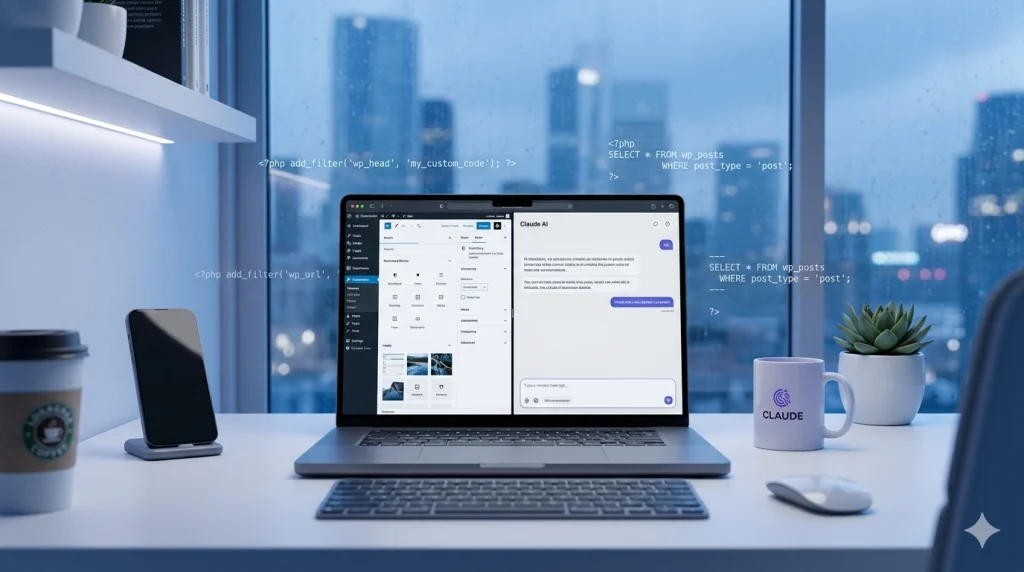
That’s when we started using Claude AI for WordPress management properly — not just for quick questions, but as a genuine partner for the unglamorous work that keeps a site healthy. This is what that looks like in practice.
Table of Contents
What Can Claude Actually Do for Your WordPress Site?
Before we get into the specifics, it’s worth being clear about what Claude is and what it isn’t.
Claude is an AI assistant made by Anthropic. Think of it as a knowledgeable developer friend who’s read every WordPress codex page, understands server configuration, and doesn’t charge by the hour. It reads your code, writes new code, explains errors in plain English, and — with the right tools — can make changes directly on your machine.
For the tasks in this guide, we used three different Claude tools depending on what we were doing:
- Claude.ai — the browser chat you can use right now, no setup needed. Great for advice, debugging, and generating code you paste yourself.
- Claude Code — a terminal tool that connects to your project folder and edits files directly. This is where the real power is.
- Claude Cowork — a desktop automation tool that controls your computer like a virtual assistant. Perfect for bulk admin tasks with no coding at all.
You don’t need all three. Start with Claude.ai and go from there.
Fixing and Customizing Our Theme Without Breaking Anything
Our first proper Claude project was a theme edit we’d been avoiding. We wanted a sticky header — the kind that stays visible as you scroll — but our theme’s CSS was a maze of nested selectors and we kept breaking the mobile layout every time we tried.
Claude Code runs in your terminal and treats your WordPress files like a project it can read, edit, and fix. Point it at your theme folder and describe what you want in plain English.
We opened Claude Code in the theme directory and typed:
“Add a sticky header to this theme. Read my existing header.php and style.css first, then make it compatible with the current design without changing anything else.”
The key instruction there is read first. Claude doesn’t just fire off generic code. It looked at our WordPress theme, how our header was actually structured, noticed we were running the WordPress admin bar, and produced CSS that handled both desktop and mobile offsets correctly:
/* Sticky header — generated by Claude after reading our theme */
.site-header {
    position: sticky;
    top: 0;
    z-index: 999;
    background: #ffffff;
    box-shadow: 0 2px 4px rgba(0, 0, 0, 0.08);
    transition: box-shadow 0.3s ease;
}

.admin-bar .site-header {
    top: 32px; /* Offset for the WordPress admin bar */
}

@media screen and (max-width: 782px) {
    .admin-bar .site-header {
        top: 46px; /* Admin bar is taller on small screens */
    }
}
That 46px offset on mobile is the kind of edge case that catches you out at midnight. Claude knew it because it read the theme first.
We also asked it to clean up some old code in our functions.php. Instead of editing the file directly, it suggested adding a small site-specific plugin — the safer approach, since theme updates won’t wipe it. Here’s the emoji-disabling function it wrote as part of that cleanup:
<?php
/**
 * Disable WordPress emoji scripts for better performance.
 * Safe to drop into functions.php or a custom plugin.
 */
add_action( 'init', 'wpm_disable_emojis' );

function wpm_disable_emojis() {
    remove_action( 'wp_head', 'print_emoji_detection_script', 7 );
    remove_action( 'admin_print_scripts', 'print_emoji_detection_script' );
    remove_action( 'wp_print_styles', 'print_emoji_styles' );
    remove_action( 'admin_print_styles', 'print_emoji_styles' );
    remove_filter( 'the_content_feed', 'wp_staticize_emoji' );
    remove_filter( 'comment_text_rss', 'wp_staticize_emoji' );
    remove_filter( 'wp_mail', 'wp_staticize_emoji_for_email' );
}
Small thing, but emoji scripts add an HTTP request on every page load. Claude prefixed the function with wpm_automatically to avoid name collisions — a detail most people miss until something breaks.
You can also check the Table of content or Editor review section on this site. We have get that design done with the help of Claude along with expand/collapse button.
For your setup: point Claude Code at your theme folder and describe what you want changed. Tell it to read your files before touching anything. The more context you give, the cleaner the output.
Debug Plugin Conflicts the Smart Way
Plugin conflicts are WordPress’s most frustrating problem. The symptom is obvious (something breaks), but the cause is buried in error logs most people can’t read.
Step 1: Turn on WordPress debug logging
Ask Claude: “Write the wp-config.php settings to enable debug logging safely on a live site.”
You’ll get this:
// Add to wp-config.php, BEFORE the "That's all, stop editing!" line

define( 'WP_DEBUG', true );
define( 'WP_DEBUG_LOG', true );   // Logs to /wp-content/debug.log
define( 'WP_DEBUG_DISPLAY', false ); // Don't show errors to visitors
@ini_set( 'display_errors', 0 );
Step 2: Paste the log and let Claude diagnose it
Open /wp-content/debug.log, copy the relevant stack trace, and paste it into Claude.ai with this prompt:
“Here’s my WordPress debug log. Which plugin is likely causing this and how do I fix it?”
Claude reads the trace, identifies the conflicting hook or function, and tells you whether to deactivate, replace, or reconfigure the plugin. No more disabling plugins one by one for an hour.
Write and Schedule Custom WP-Cron Jobs (With Real Examples)
WordPress’s built-in WP-Cron only fires when someone visits your site. For reliable scheduling — nightly backups, weekly reports, cache warmups — you need real server-level cron.
Step 1: Disable the default WP-Cron
Ask Claude Code to edit your wp-config.php. It will add:
// Disable WP-Cron spawning on page loads
define( 'DISABLE_WP_CRON', true );
Step 2: Add a real server cron job
Just ask Claude what you want to setup and it will give you the exact crontab line for your setup. For a typical Linux server, run crontab -e and add:
# Run WordPress cron every 15 minutes
*/15 * * * * cd /var/www/yoursite.com && /usr/bin/php wp-cron.php > /dev/null 2>&1

# Nightly database backup at 2:30 AM
30 2 * * * /usr/bin/mysqldump -u DBUSER -pDBPASS DBNAME | gzip > /var/backups/wp-$(date +\%F).sql.gz

# Weekly log cleanup (Sundays at 3 AM)
0 3 * * 0 find /var/www/yoursite.com/wp-content -name "debug.log" -mtime +7 -delete
Claude will also explains each part: the */15 means every 15 minutes, > /dev/null 2>&1 suppresses email output, and so on.
Step 3: Schedule a custom WP-Cron event
Want something WordPress-specific, like auto-drafting old stale posts? Ask Claude for a plugin, and you might get:
<?php
/**
 * Plugin Name: Auto-Draft Stale Posts
 * Description: Moves posts older than 180 days with fewer than 10 views to draft.
 */

// Schedule on plugin activation
register_activation_hook( __FILE__, 'wpm_schedule_stale_check' );

function wpm_schedule_stale_check() {
    if ( ! wp_next_scheduled( 'wpm_check_stale_posts' ) ) {
        wp_schedule_event( time(), 'weekly', 'wpm_check_stale_posts' );
    }
}

// The actual job
add_action( 'wpm_check_stale_posts', 'wpm_draft_stale_posts' );

function wpm_draft_stale_posts() {
    $args = array(
        'post_type'      => 'post',
        'post_status'    => 'publish',
        'posts_per_page' => 50,
        'date_query'     => array(
            array( 'before' => '180 days ago' )
        ),
    );

    $stale = new WP_Query( $args );

    while ( $stale->have_posts() ) {
        $stale->the_post();
        $views = (int) get_post_meta( get_the_ID(), 'post_views_count', true );
        if ( $views < 10 ) {
            wp_update_post( array(
                'ID'          => get_the_ID(),
                'post_status' => 'draft',
            ) );
        }
    }
    wp_reset_postdata();
}

// Clean up on deactivation
register_deactivation_hook( __FILE__, function() {
    wp_clear_scheduled_hook( 'wpm_check_stale_posts' );
} );
This is a customized WordPress plugin for your site. Drop that into /wp-content/plugins/auto-draft-stale/auto-draft-stale.php, activate it, and you’re done.
Automate Routine WordPress Admin Tasks with Claude Cowork
Claude Cowork is Anthropic’s desktop automation tool for people who don’t write code. It watches your screen and controls your computer to finish multi-step tasks — like a virtual assistant that actually clicks things.
For WordPress admin work, it’s genuinely useful for:
- Bulk-updating post categories or tags across dozens of posts
- Exporting content through the admin panel
- Reviewing and approving a queue of pending comments
- Switching a batch of posts from draft to published on a schedule
- Downloading media files for offline archiving
You can just describe the task in plain language, and Cowork handles the clicking, waiting, and repeating. It’s especially good for one-off bulk jobs that would take you 45 minutes but aren’t worth writing a script for.
Audit and Harden Your WordPress Security Settings
Security audits feel overwhelming because there are so many places to check.
Example: Block PHP execution in the uploads folder
Ask Claude for an .htaccess rule. You’ll get this, ready to drop into /wp-content/uploads/.htaccess:
# Block direct PHP execution in uploads folder
<FilesMatch "\.(?i:php|phtml|phar|php3|php4|php5|php7)$">
    Require all denied
</FilesMatch>

# Block access to sensitive files
<FilesMatch "\.(?i:log|sql|bak|inc)$">
    Require all denied
</FilesMatch>
For Nginx, Claude produces the equivalent config:
# In your server block
location ~* /wp-content/uploads/.*\.(php|phtml|phar)$ {
    deny all;
    return 403;
}
Example: WP-CLI security audit
If you have WP-CLI installed, Claude can write audit commands like:
# List all admin users
wp user list --role=administrator --fields=ID,user_login,user_email,user_registered

# Find users with weak or no 2FA (requires a 2FA plugin)
wp user meta list --user=1

# Check file permissions in key directories
find /var/www/yoursite.com -type d -exec stat -c "%a %n" {} \; | grep -vE "^(755|750)"
find /var/www/yoursite.com -type f -exec stat -c "%a %n" {} \; | grep -vE "^(644|640)"
Claude translates these for your specific server — Apache, Nginx, or managed hosts like WP Engine.
Optimise WordPress Database Queries and Site Speed
Slow sites usually come from a handful of known causes: too many post revisions, bloated autoloaded options, unoptimised images, or a theme loading assets on every page.
Example: Clean up post revisions and orphaned data
Ask Claude for a safe cleanup query. You’ll get something like:
-- Delete post revisions older than 30 days (run a backup first)
DELETE FROM wp_posts WHERE post_type = 'revision'
AND post_modified < DATE_SUB(NOW(), INTERVAL 30 DAY);

-- Delete orphaned postmeta
DELETE pm FROM wp_postmeta pm
LEFT JOIN wp_posts p ON pm.post_id = p.ID
WHERE p.ID IS NULL;

-- Remove expired transients
DELETE FROM wp_options WHERE option_name LIKE '\_transient\_timeout\_%'
AND option_value < UNIX_TIMESTAMP();
Example: Find bloated autoloaded options
This query shows what’s slowing down every page load:
SELECT option_name, LENGTH(option_value) AS size_bytes
FROM wp_options
WHERE autoload = 'yes'
ORDER BY size_bytes DESC
LIMIT 20;
Paste the results into Claude.ai and ask: “Which of these are safe to set autoload = 'no' or delete?” Claude knows which options commonly cause bloat (rewrite_rules, abandoned plugin settings, expired transients).
Example: Limit post revisions going forward
Add this to wp-config.php:
// Keep only the last 5 revisions per post
define( 'WP_POST_REVISIONS', 5 );

// Empty trash automatically every 14 days
define( 'EMPTY_TRASH_DAYS', 14 );Manage Hosting Tasks and Server Configuration
Hosting tasks — SSL renewals, PHP version upgrades, redirect rules — are what most people avoid or outsource.
Example: Nginx redirect block for HTTP → HTTPS with www
If you ask Claude AI, you’ll get a ready-to-deploy config:
# Redirect HTTP and non-www to HTTPS www
server {
    listen 80;
    server_name yoursite.com www.yoursite.com;
    return 301 https://www.yoursite.com$request_uri;
}

server {
    listen 443 ssl http2;
    server_name yoursite.com;
    # SSL certs here...
    return 301 https://www.yoursite.com$request_uri;
}

server {
    listen 443 ssl http2;
    server_name www.yoursite.com;
    root /var/www/yoursite.com;
    index index.php index.html;

    # Your WordPress config continues here...
}
Example: Safe PHP upgrade checklist
Ask Claude: “I’m on PHP 7.4 and need to upgrade to 8.2. Write me a pre-flight checklist.”
You’ll get a sequence like:
# 1. Check current version
php -v

# 2. Scan your site for deprecated code (use PHP Compatibility Checker plugin or WP-CLI)
wp plugin install php-compatibility-checker --activate

# 3. Back up the database
mysqldump -u DBUSER -p DBNAME > backup-$(date +%F).sql

# 4. Back up files
tar -czf site-files-$(date +%F).tar.gz /var/www/yoursite.com

# 5. On Ubuntu, install and switch PHP version
sudo apt install php8.2 php8.2-fpm php8.2-mysql php8.2-curl php8.2-gd php8.2-xml php8.2-mbstring
sudo a2dismod php7.4
sudo a2enmod php8.2
sudo systemctl restart apache2
Claude explains each step and warns you about plugin compatibility issues before you hit them. So just follow the steps setup explained by Claude and if you face any issues, you can report that error back to Claude so it can suggest corrective action also.
Back Up and Migrate Your WordPress Site with Claude Code
Backups are one of those jobs everyone plans to automate and nobody does. You either skip this job entirely or use some paid plugin to get this done.
What we have done is, ask Claude to write our own customized script to backup the site and package it as a WordPress plugin. This way, we only have added overhead’s which are really needed and saved on the cost of premium plugins.
Example: Full backup script
Ask Claude for a “weekly WordPress backup script that keeps the last 4 backups and deletes older ones”:
#!/bin/bash
# /usr/local/bin/wp-backup.sh
# Run weekly via cron: 0 4 * * 0 /usr/local/bin/wp-backup.sh

SITE_DIR="/var/www/yoursite.com"
BACKUP_DIR="/var/backups/wordpress"
DB_NAME="your_db"
DB_USER="your_user"
DB_PASS="your_password"
KEEP_DAYS=28

mkdir -p "$BACKUP_DIR"

TIMESTAMP=$(date +%F-%H%M)

# Database dump
mysqldump -u "$DB_USER" -p"$DB_PASS" "$DB_NAME" | gzip > "$BACKUP_DIR/db-$TIMESTAMP.sql.gz"

# Files dump (excluding cache)
tar --exclude="wp-content/cache" --exclude="wp-content/uploads/cache" \
    -czf "$BACKUP_DIR/files-$TIMESTAMP.tar.gz" -C "$SITE_DIR" .

# Delete backups older than KEEP_DAYS
find "$BACKUP_DIR" -type f -mtime +$KEEP_DAYS -delete

echo "Backup completed: $TIMESTAMP"
Then schedule it:
# In crontab
0 4 * * 0 /usr/local/bin/wp-backup.sh >> /var/log/wp-backup.log 2>&1
For migrations, Claude Code can compare two environments, adjust the wp_options siteurl and home values, and run search-replace on serialised data using WP-CLI:
wp search-replace 'https://old-site.com' 'https://new-site.com' --all-tables --dry-runMonitor Uptime and Performance with Claude
Claude can also help you build lightweight monitoring without a paid service.
Example: Simple uptime check script
#!/bin/bash
# /usr/local/bin/wp-uptime.sh

URL="https://yoursite.com"
EMAIL="you@yoursite.com"

STATUS=$(curl -o /dev/null -s -w "%{http_code}" "$URL")

if [ "$STATUS" != "200" ]; then
    echo "ALERT: $URL returned HTTP $STATUS at $(date)" | mail -s "Site Down" "$EMAIL"
fi
Schedule it every 5 minutes:
*/5 * * * * /usr/local/bin/wp-uptime.shAsk Claude to extend it with Slack or Telegram alerts, response-time logging, or checks for specific text on the page (to catch white-screen-of-death).
Generate WordPress Documentation and SOPs for Your Team
If you manage WordPress for a client or team, documentation is the thing that never gets done.
Claude.ai is fast at this. Give it context — your theme, key plugins, workflow — and ask it to write:
- A contributor guide for adding new posts
- A safe plugin-update SOP (backup → test on staging → deploy)
- A client handover document explaining the WordPress editor
- A troubleshooting runbook for common errors
Edit the output and drop it into your team wiki or send it straight to the client.
How Do I Use Claude for WordPress Without Any Technical Skills?
You don’t need technical skills to start.
Claude.ai handles most advisory tasks with nothing to install. Paste an error, ask a question, copy the answer.
Claude Cowork works through your desktop and needs no terminal knowledge. Start with a simple task like bulk-editing post tags or clearing your spam queue.
Claude Code is the most powerful but needs a terminal. If you can run a basic command, setup takes about ten minutes.
FAQ: Using Claude AI for WordPress Management
Can Claude AI directly edit my WordPress site?
With Claude Code connected to your server or local development environment, yes — it can read, write, and modify files directly. Through Claude.ai, it gives you code or instructions to apply yourself.
Is Claude Code safe to use on a live WordPress site?
Use a staging environment first. Claude is careful and explains its changes, but any direct file editing on a live site carries risk. Always back up before making changes.
What WordPress tasks save the most time with Claude?
Debugging plugin conflicts, writing cron jobs, cleaning up the database, writing backup scripts, and generating documentation. These are time-consuming manually but fast with Claude’s help.
Do I need a paid Claude plan to manage WordPress tasks?
The free plan handles most advisory tasks. For Claude Code and longer sessions, a Claude Pro or Claude for Work plan gives higher limits and access to the most capable models.
Can Claude replace a WordPress developer?
For routine maintenance, small customisations, and debugging, Claude covers a lot of ground. For complex custom work — bespoke plugins, large migrations, performance engineering — a developer is still the better choice.
Can Claude help me write a WordPress plugin from scratch?
Yes. Give it a clear spec (what it does, which hooks, the settings page), and Claude Code will scaffold the plugin, add proper activation/deactivation hooks, and follow WordPress coding standards. Test on staging before going live.
The best way to start, is to pick one task you dread and hand it to Claude. Debug that error log, let it write the backup script you’ve been putting off, hand it your slow query log.
You’ll quickly see where it saves you real time and money — and that’s where to lean in.