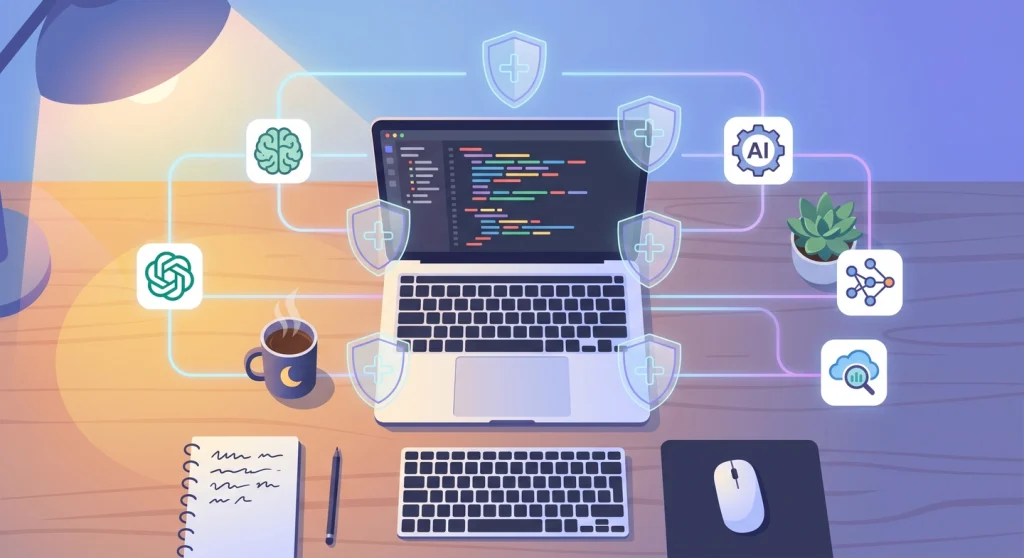
You just asked your AI coding assistant to add a login form. It delivered — but used inline styles, skipped your design system, and imported a library you banned three sprints ago.
Sound familiar? Without guardrails, every AI tool treats your project like a blank canvas. It doesn’t know your conventions, your folder structure, or that one package that broke production last month.
I went through this on my own projects, and the fix turned out to be simpler than I expected. This guide shows you how to set up AI project guardrails — simple configuration files that tell every AI coding tool exactly how your project works. You’ll walk away with a setup that keeps Claude Code, Cursor, GitHub Copilot, and others on the same page.
Table of Contents
What Are AI Project Guardrails?
AI project guardrails are instruction files you add to your repository. They tell AI coding assistants what to do — and what not to do — before they write a single line of code.
Think of them as onboarding documents for your AI pair programmer. A new developer joining your team reads your README, checks your style guide, and asks about conventions. AI tools need the same briefing, except they read it from specific Markdown files in your repo.
Without these files, every AI session starts from zero. The tool has no memory of your preferences. Guardrails give your AI persistent project context so it produces code that actually fits your codebase.
Why Every Web Developer Needs Them
If you only use one AI tool, you might get away with repeating instructions in every prompt. But most developers now juggle two or three — Cursor in the IDE, Claude Code in the terminal, Copilot for quick completions.
Each tool has its own quirks. Each one forgets everything between sessions. Without guardrails, you end up with:
- Inconsistent code style across files touched by different tools
- Wrong frameworks or libraries because the AI picked its own defaults
- Security mistakes like hardcoded secrets or missing input validation
- Wasted time re-explaining the same rules in every prompt
Guardrails solve this by giving every tool a shared rulebook. You write the rules once. Every AI tool reads them automatically.
The Configuration Files Every AI Tool Reads
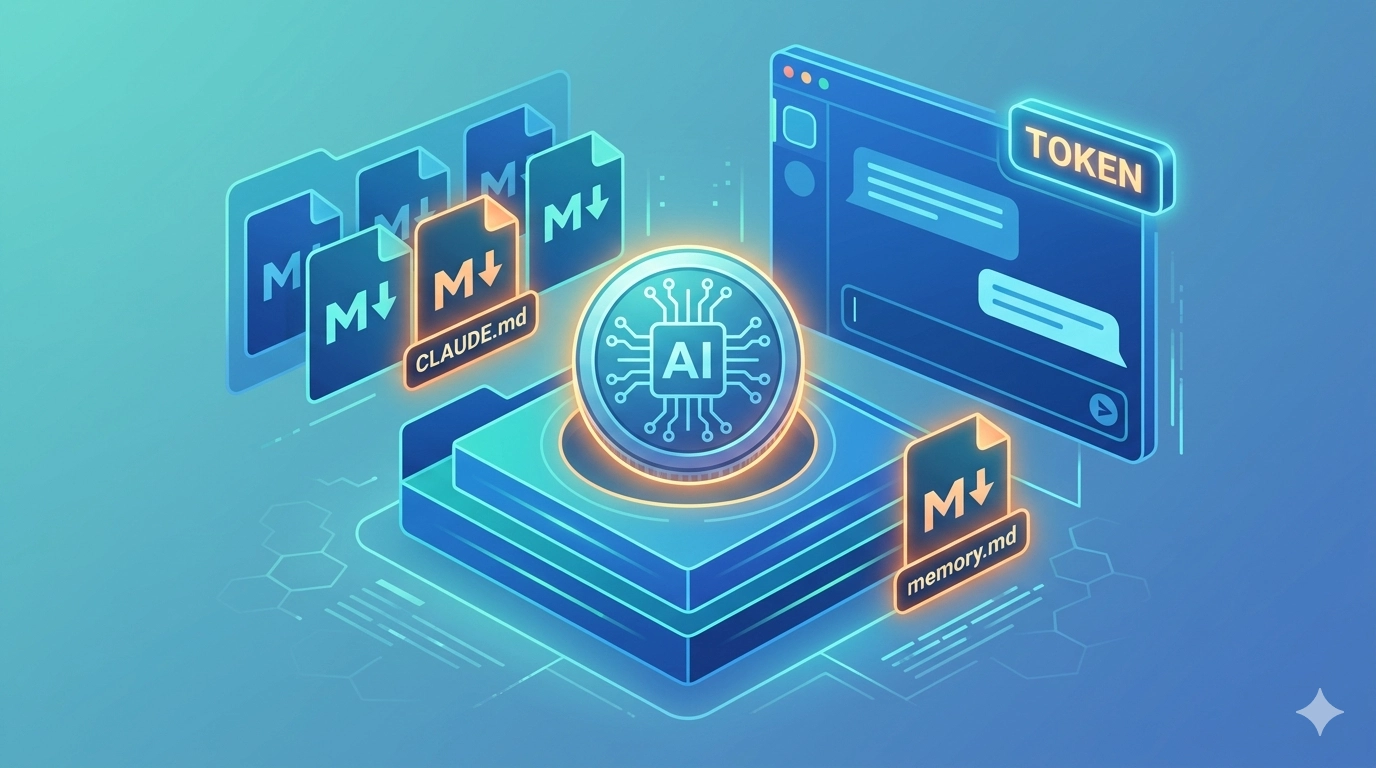
Each AI coding assistant looks for a specific file in your project. Here’s the landscape in 2026:
| Tool | Config File | Location | Reads AGENTS.md? |
|---|---|---|---|
| Claude Code | CLAUDE.md | Project root | Yes |
| Cursor | .cursor/rules/*.mdc | .cursor/rules/ directory | Yes |
| GitHub Copilot | copilot-instructions.md | .github/ directory | Yes |
| OpenAI Codex | AGENTS.md | Project root | Yes — it’s the native file |
| Windsurf | .windsurf/rules/*.md | .windsurf/rules/ directory | Yes |
| Gemini CLI | GEMINI.md | Project root | With a settings change |
The format is almost always Markdown. That’s the good news — you already know how to write these files.
CLAUDE.md — Claude Code’s Instruction File
Claude Code reads CLAUDE.md from your project root every time you start a session. It supports a hierarchy: a global CLAUDE.md in your home directory, a project-level one in the repo root, and scoped rules inside .claude/rules/ for specific directories.
AGENTS.md — The Cross-Tool Standard
AGENTS.md has gone from emerging convention to the official standard. Since December 2025 it sits under the Linux Foundation’s Agentic AI Foundation, and the official AGENTS.md site reports adoption across tens of thousands of repositories. OpenAI Codex, Claude Code, Cursor, GitHub Copilot, and Windsurf all read it natively now.
That changes the maths on maintenance. A year ago you needed a pointer file for every tool. Today a single AGENTS.md covers most of them out of the box. Working in a monorepo? Drop nested AGENTS.md files into subdirectories, and supporting tools apply each one only to that part of the project.
.cursor/rules/ — Cursor’s Rule System
Cursor moved from a single .cursorrules file to a directory-based system. Each .mdc file inside .cursor/rules/ can target specific file types or directories. You can set rules to activate always, on specific globs, or only when the AI decides they’re relevant.
.windsurf/rules/ — Windsurf
Windsurf originally used a single .windsurfrules file, but that approach is now legacy. The current convention is a .windsurf/rules/ directory of Markdown files — one file per topic works well. Even simpler: Windsurf reads AGENTS.md directly and treats a root-level file as an always-on rule, so if you already maintain one, Windsurf needs no extra setup.
GEMINI.md — Gemini CLI
Google’s Gemini CLI looks for GEMINI.md in your project root by default. It follows the same Markdown pattern: list your stack, conventions, and constraints, and Gemini uses them as context when generating code from the terminal. Gemini doesn’t read AGENTS.md out of the box, but one line in its settings.json fixes that — set context.fileName to ["AGENTS.md", "GEMINI.md"] and it picks up the shared file too.
copilot-instructions.md — GitHub Copilot
Copilot reads its instructions from .github/copilot-instructions.md, and since late 2025 it also reads AGENTS.md — including nested ones in subdirectories. Instructions apply to chat, code review, and Copilot’s coding agent. You can also add path-specific instructions in .github/instructions/ for different parts of your codebase.
What Happens When Config Files Conflict?
If you use multiple files — say an AGENTS.md and a CLAUDE.md — most tools read both and treat the tool-specific file as the higher-priority source. Claude Code, for example, treats CLAUDE.md as authoritative when both exist. Cursor prefers its own rules over AGENTS.md, while Copilot merges instructions from AGENTS.md and copilot-instructions.md and uses both.
The simplest way to avoid conflicts: keep your core rules in AGENTS.md and use tool-specific files only for overrides or tool-unique instructions. If both files say the same thing, that’s fine — redundancy is harmless. If they contradict each other, the tool-specific file usually wins.

What to Put in Your Guardrail Files
Not everything belongs in your AI config files. Here’s what to include and what to skip.
Include These
- Tech stack and versions — “This project uses Next.js 15, TypeScript 5.7, and Tailwind CSS 4.”
- Coding conventions — “Use functional components with hooks. No class components.”
- Folder structure — “Components go in
src/components/. API routes go insrc/app/api/.” - Banned patterns — “Never use
anytype. Never use inline styles. Never import from lodash — use native methods.” - Testing expectations — “Write tests with Vitest. Every new function needs a unit test.”
- Security rules — “Never hardcode API keys. Always validate user input. Use parameterised queries.”
- Build and run commands — “Start dev server:
npm run dev. Run tests:npm test.”
Leave These Out
- Things that change fast — Don’t list every file path. The AI can explore your codebase.
- General programming knowledge — The AI already knows JavaScript syntax.
- Long tutorials or explanations — Keep it concise. Most tools cap config files at 6,000–12,000 characters.
- Secrets or credentials — Never put API keys in these files. They get committed to version control.
Keep in mind that these files only control what the AI writes — most AI coding tools can still read your .env files and other secrets unless you explicitly block access, a risk big enough to deserve its own guide.
How to Set Up a Single Source of Truth
Maintaining separate files for five different tools is a recipe for drift. The practical approach: write your rules once, then point each tool to the same content.
Step 1 — Create Your Core Rules File
Start with an AGENTS.md in your project root. This works across the widest range of tools.
# Project Rules

## Tech Stack
- Framework: Next.js 15 (App Router)
- Language: TypeScript 5.7 (strict mode)
- Styling: Tailwind CSS 4
- Testing: Vitest + React Testing Library
- Package manager: pnpm

## Coding Standards
- Functional components only. No class components.
- No `any` type. Use proper TypeScript types.
- Use named exports. No default exports.
- Maximum file length: 300 lines. Split if longer.

## Folder Structure
- Components: `src/components/`
- Hooks: `src/hooks/`
- API routes: `src/app/api/`
- Types: `src/types/`

## Banned Patterns
- No inline styles. Use Tailwind classes.
- No lodash. Use native Array/Object methods.
- No console.log in committed code. Use the logger utility.

## Security
- Never hardcode secrets. Use environment variables.
- Validate all user input at the API boundary.
- Use parameterised database queries. No string concatenation.

## Commands
- Dev server: `pnpm dev`
- Run tests: `pnpm test`
- Lint: `pnpm lint`
- Type check: `pnpm tsc --noEmit`
Step 2 — Add Tool-Specific Files Only Where Needed
Since most tools now read AGENTS.md natively, this step is lighter than it used to be. You only need extra files for two things: instructions unique to one tool, and tools that don’t read the standard yet.
This is exactly how I run the repository behind this blog. My CLAUDE.md is a few lines long — it simply points to AGENTS.md, where the real rules live. For Claude Code, a lightweight CLAUDE.md looks like this:
# CLAUDE.md

See AGENTS.md for all project rules and conventions.

## Claude-Specific
- Run tests before marking any task complete.
- When creating new components, check existing ones in `src/components/` for patterns first.
Copilot, Cursor, and Windsurf read AGENTS.md directly, so you don’t need pointer files for them at all. Create .github/copilot-instructions.md or .cursor/rules/project.mdc only when you have rules genuinely specific to that tool — and for Gemini CLI, add the settings.json tweak mentioned earlier.
This way, your core rules live in one place. Tool-specific files only add instructions unique to that tool.
Step 3 — Commit Everything to Version Control
These files belong in your repo. Every team member — and every AI tool — gets the same rules. Add them to your next commit and treat them like any other project configuration.

Add a Second Layer: Pre-Commit Hooks
Instruction files are your first line of defence. But AI tools don’t always follow instructions perfectly — in practice, even the best models occasionally miss a rule they’ve just read. A second, automated layer catches what slips through.
Pre-commit hooks run checks before every commit lands. They’re deterministic — no AI judgment involved. Either the code passes or it doesn’t.
Set up a .pre-commit-config.yaml in your project root:
repos:
  - repo: https://github.com/pre-commit/pre-commit-hooks
    rev: v4.6.0
    hooks:
      - id: trailing-whitespace
      - id: end-of-file-fixer
      - id: check-added-large-files
  - repo: https://github.com/gitleaks/gitleaks
    rev: v8.21.0
    hooks:
      - id: gitleaks
This catches secrets, formatting issues, and oversized files — regardless of which AI tool wrote the code.
Pair this with your existing linter and type checker. If your project uses ESLint and TypeScript, add those as pre-commit hooks too. The AI writes the code. The hooks verify it meets your standards.
A Defence-in-Depth Strategy

The most reliable setup layers three types of guardrails:
- Instruction files (AGENTS.md, CLAUDE.md) — Tell the AI what to do. Prevents most mistakes upfront.
- Pre-commit hooks — Catch formatting, secrets, and lint errors before they enter the repo.
- CI/CD pipeline checks — Run full test suites, security scans, and code quality tools on every push. This is your safety net if a pre-commit hook gets bypassed.
No single layer is perfect. Together, they create a system where AI-generated code meets the same bar as human-written code.
Getting Started Today
You don’t need all three layers on day one. Here’s the quickest path to meaningful guardrails:
- Create an
AGENTS.mdwith your tech stack, conventions, and banned patterns. This takes 15 minutes and immediately improves every AI tool you use. - Add tool-specific files only where needed — a
CLAUDE.mdfor Claude-specific extras, or the settings tweak so Gemini CLI reads yourAGENTS.md. Most tools need nothing more. - Install a secret scanner — add gitleaks as a pre-commit hook. This single step prevents the most dangerous AI mistake: committed credentials.
Start small. Refine your rules as you notice patterns. Every time an AI tool does something you don’t want, add a rule to prevent it next time — that’s how my own AGENTS.md grew, one correction at a time. Your guardrail files are living documents, and they get better the more you use them.
Frequently Asked Questions
What are AI project guardrails?
AI project guardrails are configuration files you place in your code repository that instruct AI coding assistants about your project’s rules, conventions, and constraints. They ensure tools like Claude Code, Cursor, and GitHub Copilot produce code that fits your existing codebase instead of guessing.
Do I need a separate config file for every AI tool?
No — not anymore. Claude Code, Cursor, GitHub Copilot, Windsurf, and OpenAI Codex all read a single AGENTS.md natively. Create lightweight tool-specific files (like CLAUDE.md) only for instructions unique to one tool, or adjust settings for tools like Gemini CLI that don’t read the shared file by default.
What should I put in my AI guardrail files?
Focus on your tech stack, coding conventions, folder structure, banned patterns, security rules, and build commands. Leave out things the AI already knows (general programming knowledge) and things that change frequently (specific file listings). Keep the file under 6,000 characters for best compatibility across tools.
Can AI tools ignore guardrail files?
Yes — instruction files are guidance, not enforcement. AI tools follow them most of the time, but they can still make mistakes. That’s why you should pair instruction files with pre-commit hooks and CI checks. Automated validation catches what the AI misses.
Should I commit these files to version control?
Absolutely. These files are project configuration, just like your .eslintrc or tsconfig.json. Committing them ensures every team member and every AI tool session uses the same rules. They should evolve with your project through normal code review.