I changed MetaBlogue’s brand colour three times before settling on the orange you see today. Each time, the colour looked great in isolation — and each time, I discovered a new place where it made text hard to read.

That’s the trap with brand colours. Roughly 1 in 12 men and 1 in 200 women have some form of colour vision deficiency, and every reader struggles with low-contrast text on a phone in sunlight. A palette that only looks good is doing half its job.
So in this guide, I’ll walk you through how I now choose colours for my blogs: a six-step process that bakes accessibility in from the start, what to do when your favourite colour fails the contrast check, and the exact code I use to add the final palette to a GeneratePress child theme.
What Is an Accessible Brand Color Palette?
An accessible brand color palette is a set of brand colours whose text and background combinations meet WCAG contrast requirements, so content stays readable for people with low vision or colour blindness. It pairs your brand colours with neutrals that pass a minimum 4.5:1 contrast ratio for body text.
The key word there is combinations. No single colour is accessible or inaccessible on its own — accessibility lives in the pairs.
Accessibility Is About Pairs, Not Colours
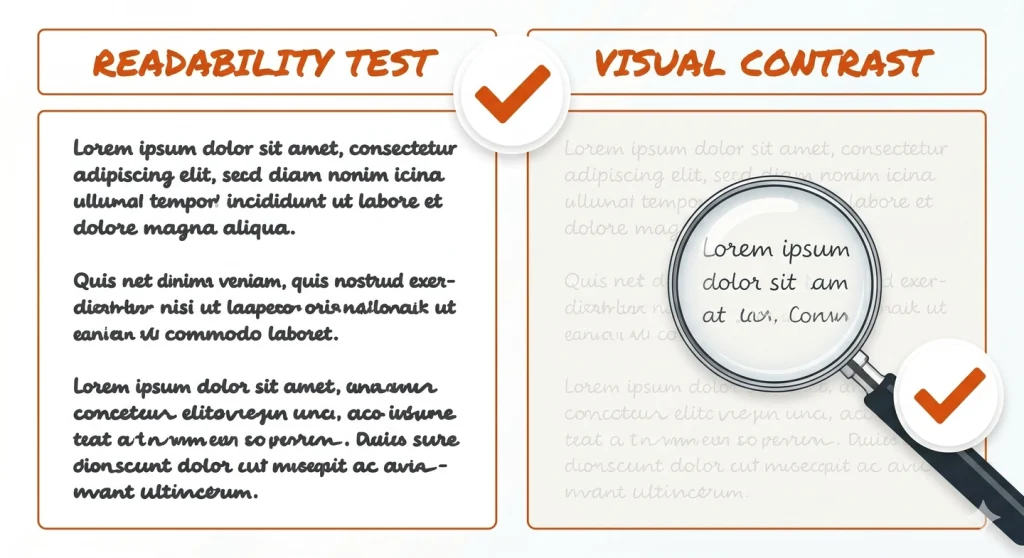
WCAG 2.1 requires a contrast ratio of at least 4.5:1 between normal text and its background, and 3:1 for large text, to meet Level AA. The ratio measures luminance difference on a scale from 1:1 to 21:1, and it’s defined in the official W3C WCAG 2.1 specification. If your body text falls below 4.5:1, a real portion of your readers is working harder than they should to read your content.
This is why “is orange accessible?” is the wrong question. White text on MetaBlogue’s orange (#D64F15) gives a ratio of 4.21:1 — it fails AA for body text but passes for large text. The same orange on a white background as a heading? Different pair, different result.
So the goal isn’t finding magically accessible colours. It’s building a palette where the pairs you’ll actually use — body text on background, white on buttons, links on white — all pass.

How to Choose Your Palette in 6 Steps
Here’s the process I follow now, in order. You can do all of it with my free Color Palette Generator with built-in WCAG contrast checker — it runs in your browser and nothing you pick leaves the page.
1. Start with one brand colour
Pick a single colour that matches the personality of your blog. Warm colours feel energetic, cool colours feel calm, and muted colours feel premium. Don’t pick five colours — pick one and let the rest derive from it.
2. Generate harmony palettes from it
Drop your colour into the generator and look at the complementary, analogous, and triadic palettes it produces. You’re shopping for one accent colour at most. I use the complementary colour sparingly, mostly for things that need to stand out against the brand colour.
3. Build tints and shades
This is the most useful palette of the four. A darker shade of your brand colour becomes your hover state, and a very light tint becomes a section background. Most of a well-designed blog is one colour at different strengths.
4. Choose your text neutrals
Skip pure black on pure white. A very dark grey like #1F2328 on white still gives you a contrast ratio of nearly 16:1 — comfortably past AAA — while feeling slightly softer. Your neutrals do 90% of the reading work, so get these right first.
5. Test every pair you’ll actually use
Now run the real combinations through the contrast checker: body text on background, white text on your brand colour, link colour on white, text on your tinted backgrounds. Fix failures by darkening the foreground or lightening the background until the pair passes.
6. Apply the 60-30-10 rule
Use roughly 60% neutral base, 30% secondary (usually your text colour), and 10% brand accent. When I trimmed MetaBlogue down to this ratio, the site instantly looked more professional — which surprised me, because I expected it to look plain.
What If Your Brand Colour Fails the Contrast Check?
You have three honest options, and I’ve used all of them.
Keep it for large text only. A pair that fails 4.5:1 but passes 3:1 is still AA-compliant for headings of 18pt and above, or 14pt bold. This is exactly how I use white-on-orange — buttons and large headings, never body text.
Create a darker “text-safe” variant. Generate shades of your brand colour and find the first one that passes 4.5:1 against white. Use the original for decoration and the darker variant whenever the colour has to carry small text.
Demote it to a pure accent. Borders, icons, underlines, and background tints have no text contrast requirement at all. Your colour can be everywhere in the design without ever sitting behind a paragraph.
Don’t Rely on Colour Alone
One more rule that contrast ratios won’t catch: never let colour be the only signal. Red-green pairings are the classic failure — they’re a natural fit for “bad” and “good”, and nearly indistinguishable for the most common forms of colour blindness.
In practice, this means links need underlines and not just a colour change, error messages need an icon or label, and charts need patterns or direct labels. Small things, but they decide whether a meaningful slice of your audience can use your site.

Adding Your Palette to a GeneratePress Child Theme

Once the palette passes, lock it into WordPress so you stop picking colours by eye in the editor. I run my blogs on GeneratePress — you can read why in my GeneratePress review — and there are two ways to do this.
The no-code way is Appearance → Customize → Colors, where GeneratePress’s Global Colors feature lets you define a palette that flows into the block editor automatically. It’s the right choice if you don’t maintain a child theme.
Since I keep my customisations in a child theme, I prefer registering the palette in code. Add this to your child theme’s functions.php, with your own colours:
/**
 * Register the brand colour palette for the block editor.
 */
function mb_brand_color_palette() {
	add_theme_support(
		'editor-color-palette',
		array(
			array(
				'name'  => 'Brand Primary',
				'slug'  => 'brand-primary',
				'color' => '#D64F15',
			),
			array(
				'name'  => 'Brand Dark',
				'slug'  => 'brand-dark',
				'color' => '#96370F',
			),
			array(
				'name'  => 'Brand Tint',
				'slug'  => 'brand-tint',
				'color' => '#FBEDE8',
			),
			array(
				'name'  => 'Text',
				'slug'  => 'text',
				'color' => '#1F2328',
			),
			array(
				'name'  => 'Background',
				'slug'  => 'background',
				'color' => '#FFFFFF',
			),
		)
	);
}
add_action( 'after_setup_theme', 'mb_brand_color_palette' );
WordPress then exposes each colour as a CSS custom property you can use in your stylesheets, which means the palette lives in exactly one place:
.mb-cta-button {
	background: var(--wp--preset--color--brand-primary);
	color: var(--wp--preset--color--background);
}

.mb-cta-button:hover {
	background: var(--wp--preset--color--brand-dark);
}
Now every editor colour swatch, button, and custom style pulls from the same five values. Change a hex code once in functions.php, and it updates everywhere — which is the whole point of having a palette.
Wrapping Up
An accessible brand colour palette comes down to one colour you love, neutrals that pass 4.5:1, and an honest contrast check on every pair you’ll actually use. Run your current colours through the free palette generator and contrast checker — it takes about two minutes to find out whether your blog passes.
Frequently Asked Questions
What contrast ratio do brand colors need to be accessible?
Brand colors need a contrast ratio of at least 4.5:1 against their background when used for normal text, and 3:1 for large text, to meet WCAG Level AA. The stricter AAA level requires 7:1 for normal text. Decorative uses like borders and backgrounds behind no text have no contrast requirement.
Can I keep my brand color if it fails the contrast check?
Yes — a brand color that fails the contrast check can still be used for large headings, buttons with big text, and pure decoration. Reserve it for elements at 18pt and above (or 14pt bold), and create a darker variant of the same colour for anything carrying body text.
How many colors should a blog’s brand palette have?
A blog’s brand palette should have between two and six colours: one primary brand colour, an optional accent, and two or three neutrals for text and backgrounds. Most of the visual variety should come from tints and shades of the primary colour rather than additional hues.
How do I add a custom color palette to GeneratePress?
A custom color palette can be added to GeneratePress either through Appearance → Customize → Colors using the Global Colors feature, or by registering an editor-color-palette with add_theme_support() in a child theme’s functions.php. The code approach keeps your palette version-controlled and exposes each colour as a CSS custom property.