AWS is retiring the Bitnami-packaged Lightsail blueprints. WordPress, LAMP, Nginx and Node.js all packages will go away on 19 November 2026, and they stopped shipping new versions back in May.
The official way to migrate WordPress from Bitnami is WordPress Tools → Export, then import the XML on the new server. I tried to talk myself into that route and couldn’t. It carries your posts and media, and quietly leaves behind every setting that makes the site actually work.
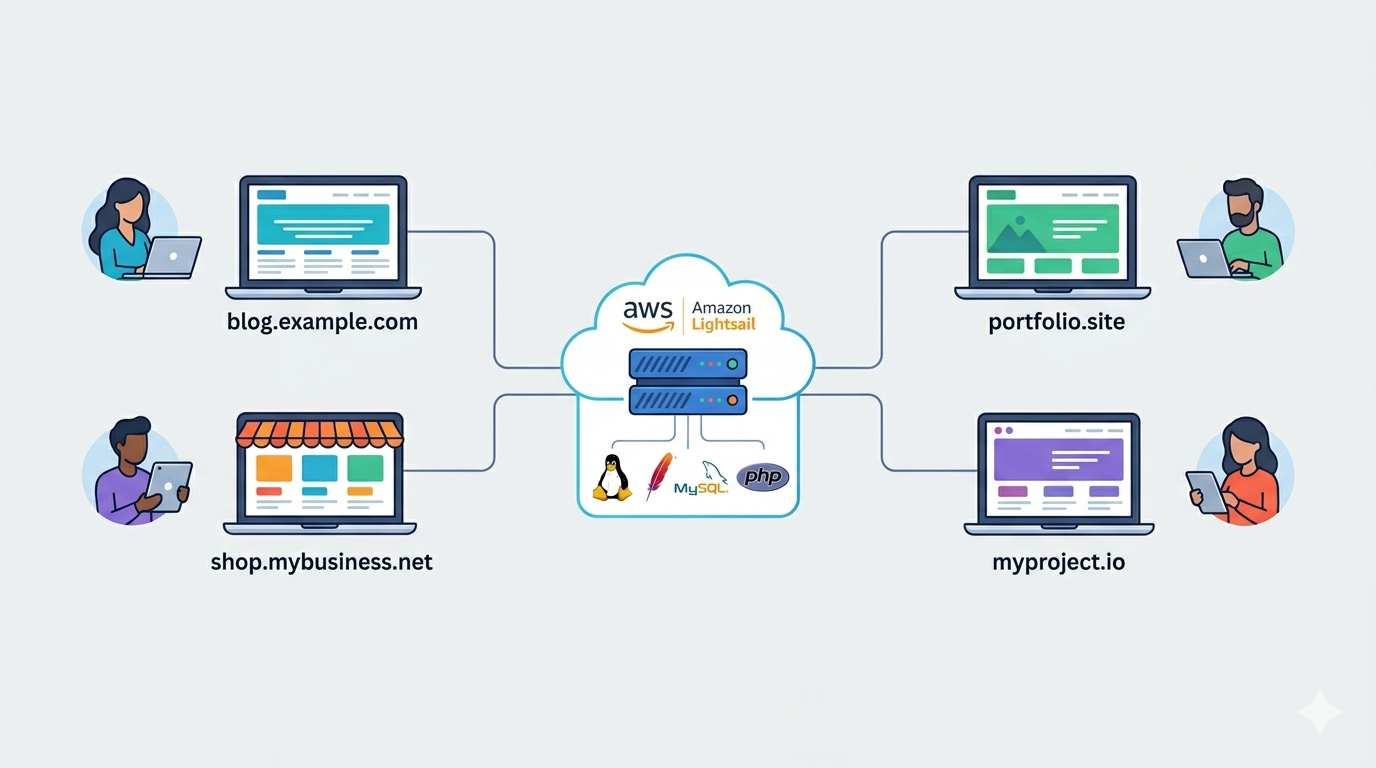
So I wrote four scripts instead and used those scripts to move all six of my sites in an afternoon. Two WordPress blogs, a WooCommerce store, another WordPress site, and two static sites.
Everything came across — plugin settings, widgets, user passwords, custom tables. Below is exactly how I did it, plus the seven things that broke along the way. Most only show up once you are on a real server, and a few fail silently, which is worse.
What does migrating off Bitnami actually mean?
Migrating WordPress from Bitnami means moving a site off Bitnami’s self-contained /opt/bitnami stack onto a standard Linux server where Apache, PHP and MariaDB come from the distribution’s own packages. Your files and database move across unchanged. What does not move is everything Bitnami quietly configured for you.
That last sentence is the whole article, really. Bitnami gives you a tuned stack in a box. When you leave the box, you leave the tuning behind, and nothing warns you about it.
First — do you even have to move?
No. And I want to be straight about this, because plenty of writeup’s on this topic will skip it.
AWS states that existing Bitnami instances keep running without disruption after the deprecation dates, and that you do not need to migrate your application. You can even keep launching new instances from your existing snapshots. What you lose is the ability to pick those blueprints for a fresh instance, and any new base images. The full detail sits in the Lightsail Bitnami blueprints FAQ.
So the pressure isn’t an outage. It’s drift. Your server slowly moves away from anything the vendor still builds images for, and one day you need to rebuild it in a hurry and find the blueprint is gone. I would rather do that move on a calm Saturday than during an incident.
Why the official route loses your settings
Here’s the part that made my mind up.
The WordPress XML export carries posts, pages, comments and media, but it leaves behind plugin settings, theme customizer state, widget placement, user password hashes and any custom database table.
On a WooCommerce store the gap is worse, because HPOS moved orders out of wp_posts into a wc_orders table the exporter never looks at. Rebuilding from that export means reconfiguring the site by hand and asking every user to reset their password.
For one small blog, fine. For six sites, that’s a week of clicking through settings screens trying to remember what you had.
The plugin routes — All-in-One WP Migration, Duplicator, UpdraftPlus — are a genuine step up and I’ve used them happily on single sites. Though on a multi-site server they get awkward: you’re driving a browser upload for a 60 MB archive, per site, and the free tiers start pushing back on size. I wanted something I could run over SSH and repeat six times without thinking about it.
The four scripts I ended up writing
I ended up with four, and the split matters more than it looks:
probe-target.sh— runs on the new server, read-only, reports exactly what stack you haveaudit-server.sh— runs on the old server, read-only, lists the server-wide settings a per-site backup can’t carryexport-site.sh— packages one site into a single.tar.gzrestore-site.sh— rebuilds that site on the new server, then checks its own work
The important design decision was that nothing is hardcoded. Bitnami has shipped at least four different directory layouts over the years, so the scripts find the stack rather than assuming it. Site name is the only argument you pass to these scripts.
restore-site.sh also travels inside every bundle. So on the new server you extract a tarball and run the script already sitting in it — no separate download, and no version mismatch between the thing that packed your site and the thing unpacking it.
How I moved a WooCommerce site off Bitnami
I piloted on my WooCommerce site, on the theory that if the messiest site survives then the blogs will be fine.
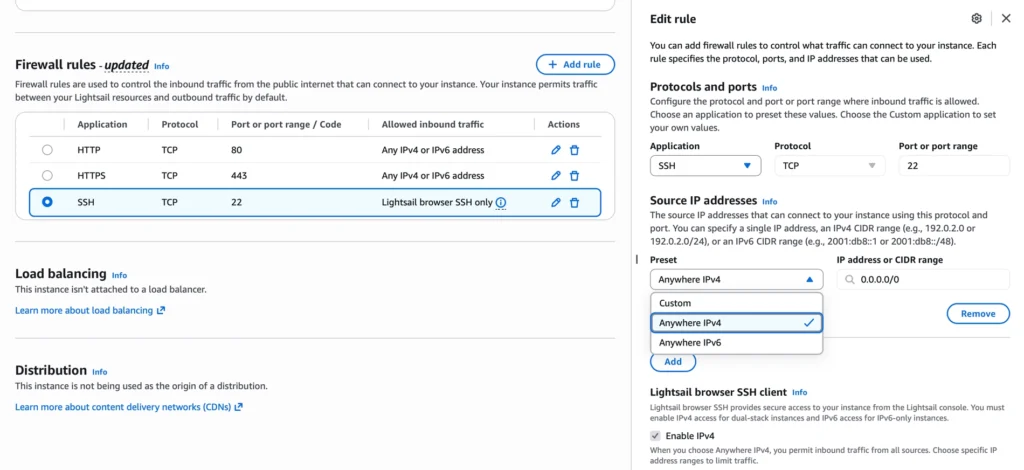
Before anything else — open SSH on the new server. This one stopped me on the first command. The Lightsail-packaged blueprints ship with port 22 restricted to Lightsail’s browser SSH client, which is a sensible default but completely useless for a migration. You can’t scp a script onto a server you can only reach through a browser window.
Go to the instance’s Networking tab and edit the SSH rule. If you have a fixed IP at home or in the office, put that in and nothing else — that’s the tight version. If your IP changes, which it does on most home connections, you’ll need 0.0.0.0/0 to get in at all.
That opens SSH to the internet, so use key authentication only, and narrow it back down once the migration is finished. Ports 80 and 443 are already open on these images, so SSH is the only rule you have to touch.
Step 1 — Look at the new server before touching anything.
sudo ./probe-target.shYou need to run this on the new server and it doesn’t make any changes. It reports the Apache config root, the vhost convention, the document root base, the web user, PHP and MariaDB versions, and whether Redis, WP-CLI and certbot exist. Everything the restore does later is driven by what this finds, which is why it never has to guess a path.
Step 2 — Inventory the old server.
sudo ./audit-server.shThis needs to be run on old server. It writes a server-parity.md checklist — HTTP/2 state, PHP ini values, MariaDB tuning, Redis configuration, cron jobs, certificates. This is the stuff no per-site backup carries, and it’s where most of the pain lives. Work through it on the new server before you restore anything, so your pilot site is tested on a like-for-like machine.
Step 3 — Export the site. It stays live.
sudo ./export-site.sh SiteNameIt creates a backup package on the old server. Mine produced a 263 MB bundle: 12,563 files, a 50-table database dump, both vhost files, the original wp-config.php, and an exact row count for every table. The site kept serving the whole time.
Step 4 — Move it, then dry-run the restore.
scp bitnami@OLD_IP:~/migration/sitename-*.tar.gz .
scp sitename-*.tar.gz admin@NEW_IP:~/
tar -xzf sitename-*.tar.gz && cd sitename-*/ && sudo ./restore-site.sh --dry-runThe dry run prints every path it will write, the database it will create, and the vhost it will generate — and changes nothing. I ran this before every single restore. It caught a database charset problem on the first site that would otherwise have shipped to all six.
Step 5 — Restore for real.
sudo ./restore-site.sh --selftest-tlsIt extracts the files, creates the database with a freshly generated password (the old one never leaves the old server), rebuilds wp-config.php from the original with only the database constants swapped, writes a vhost in the new server’s own convention, fixes ownership and permissions, tests the Apache config, reloads, and then verifies itself.
Keeping the original wp-config.php is what preserves your authentication salts. That’s why nobody gets logged out — I signed into /wp-admin on the new server with my existing password, which the XML route simply cannot do.
Step 6 — Look at it before moving DNS.
That --selftest-tls flag writes a temporary self-signed HTTPS vhost. Point your own machine at the new server with an /etc/hosts line, browse the site, click through the certificate warning. Your visitors see nothing.
Step 7 — Cut over.
Final export with --freeze, restore with --force, change the A records, then certbot:
sudo certbot --apache -d example.com -d www.example.com--freeze leaves the old copy in maintenance mode, so nothing new lands on a server you’re about to abandon.
Where your paths differ
This is not a Lightsail problem. Bitnami looks nearly identical wherever it came from, which is why the same scripts work on all of it. Only the starting path changes:
| Where your Bitnami came from | Web root you’ll find |
|---|---|
| Lightsail blueprint | /opt/bitnami/apache/htdocs/{site} |
| EC2 / AWS Marketplace AMI | /opt/bitnami/apache2/htdocs |
| Azure or GCP marketplace image | /opt/bitnami/apps/{app}/htdocs |
| Native installer | /opt/lampstack-8.2.x-0/… or ~/stack/… |
| Single-app image | /opt/bitnami/wordpress |
Run sudo ./export-site.sh --list and it tells you which one you have. If your layout is stranger than all of these, pass an absolute path instead of a site name.
The SSH user varies too — bitnami, ubuntu, ec2-user, azureuser. The scripts don’t care, because they read ownership off the site directory rather than assuming a username.
Seven things that only break on a real server
This is the section I wish someone had written before I started.
1. HTTP/2 dies silently
Bitnami runs Apache with mpm_event and PHP-FPM, so HTTP/2 works out of the box. A stock Ubuntu or Debian apache2 defaults to mpm_prefork with mod_php, and that combination cannot serve HTTP/2 at all.
Your site works perfectly. It just quietly drops to HTTP/1.1, and nothing tells you — which matters, because WordPress speed and SEO are inseparable and you would be handing back a chunk of performance without ever seeing it in a plugin dashboard. Fix it before you migrate:
sudo a2dismod php8.5 mpm_prefork
sudo a2enmod mpm_event proxy_fcgi setenvif http2
sudo a2enconf php8.5-fpm
Then check it — and note you can only check after the certificate exists, because h2 only negotiates over TLS:
curl -sI --http2 https://example.com | head -12. Your PHP version has two answers
This one cost me an hour. php -v on my new server said 8.5. Apache was actually running mod_php 8.4 — the command line and the web server were on different versions entirely.
That matters because extensions install per version. Everything I’d installed as php8.5-* was invisible to the thing actually serving pages. Always check what Apache runs, not what your shell reports.
3. The new database can be older than the old one
I assumed I was upgrading. I wasn’t. My Bitnami server ran MariaDB 12.2.2 and the new Lightsail LAMP image shipped 10.11.14 — two major generations backwards, because vendor images pin whatever LTS they were built with.
That’s fine right up until it isn’t. MariaDB 11.4 added a new collation family, and a dump containing those collations will fail to import on 10.11 partway through, after your files are already in place. Check first:
SELECT DISTINCT table_collation FROM information_schema.tables WHERE table_schema LIKE 'wp\_%';Mine came back with utf8mb4_unicode_ci, utf8mb4_unicode_520_ci and utf8mb3_general_ci — all old, all fine. But I would rather know than find out mid-import.
4. Your restored site will show you a different site entirely

I restored my second site, browsed to it through my hosts file, and landed on the first one. Not an error page. A completely different website which was being delivered on that URL.
That’s SNI fallback. WordPress redirects plain HTTP to its siteurl, which is HTTPS. If the restored site has no :443 vhost yet, Apache falls back to the first HTTPS vhost on the box — the site you migrated last week — and that site’s WordPress redirects you to its own domain.
It looks like a database problem. It isn’t. sudo apache2ctl -S shows which vhosts exist on which port, and the fix is a temporary self-signed vhost for the site you’re testing.
5. Post and page counts mean nothing on WooCommerce
My WooCommerce store reported 0 posts and 7 pages. Both numbers were correct and both were useless — the actual data was products and orders sitting in tables those counts never touch.
Row counts per table are the only migration check that works regardless of what the site is built from. Post and page counts describe a blog. They say nothing about products, orders, membership records, or course progress. That’s why the restore compares every table against a count taken at export time, and fails loudly on any mismatch.
6. Transient churn looks exactly like data loss
My first restore of the busiest site reported the options table 303 rows short. That looks alarming.
It was transients — cached values with an expiry that WordPress deletes the moment a restored site first loads, on a site that had kept writing them after the dump was taken. Real settings don’t churn; cache does. Excluding transients from the count made the number exact.
7. Certificates and Redis don’t come with you
SSL certificates cannot be transferred between servers. Reissue with certbot once DNS points at the new box — and note certbot installs its own systemd timer, so any renewal cron from the Bitnami side doesn’t carry over.
Redis isn’t on the new image at all. Install it before you migrate, keep each site on its own database index, and give each one a distinct cache key salt. I found one of my sites had its salt commented out for years, with curly quotes, doing nothing at all.

What the move actually saved me
I’d been running an 8 GB instance at $40 a month. Six sites on the old server used about 3.5 GiB. This was an opportunity to analyze if the server size was needed, so I have started with 4GB instance. I kept the check on the server usage to see if there are any issues.
On the new server, those same six sites use 1.3 GiB of 3.8 GiB, with 2.5 GiB free. Redis holds about 55 MB. So I downsized to a 4 GB instance at $20 a month — and I only had the nerve to do that because the migration let me measure it first, with the old server still running as a rollback.
That’s $240 a year saving, on evidence rather than a guess. The old box wasn’t struggling. It was just built when I had fewer sites, and I never went back to check if its all was needed.
Where to go from here
If you’re on a Bitnami stack anywhere — Lightsail, EC2, Azure, GCP, or the native installer — you have until November before the blueprints go. That’s plenty of time to do this calmly, which is exactly the right way to do it.
Start with the read-only steps. Run the probe on a fresh server and the audit on your existing one, and read what comes back before you change a single thing. Even if you decide to stay on Bitnami for now, that parity checklist is worth having.
All four scripts are on GitHub under MIT — Bitnami LAMP Migration. You can take them and use them to migrate WordPress from Bitnami. If you hit a Bitnami layout they don’t recognise, open an issue and I’ll add it.
FAQ’s about Migrate WordPress from Bitnami
Do I have to migrate off Bitnami?
You do not have to migrate. AWS states that existing Bitnami instances keep running without disruption after the deprecation dates, and you can still create instances from your existing snapshots. What you lose is the ability to launch new instances from those blueprints, and any updated base images. It’s drift, not an outage.
What happens to my Bitnami instance after November 2026?
Your instance keeps running exactly as it does now. You stay responsible for OS and application patching, which was already true. The blueprint simply disappears from the list when you go to create something new.
Can I move my SSL certificate to the new server?
SSL certificates cannot be moved between instances — you reissue them on the new server. With certbot that’s a single command once DNS points at the new box, and it sets up automatic renewal itself. Plan the order carefully, because certbot validates over HTTP and DNS has to have propagated first.
Is the WordPress export and import tool good enough?
The WordPress XML export is good enough only if your site is genuinely just posts and pages. It carries content and media but drops plugin settings, customizer state, widgets, user password hashes and custom tables. For a store, or any site with configured plugins, you’ll be rebuilding by hand.
How long does migrating a WordPress site off Bitnami take?
Migrating one site takes roughly fifteen minutes once the new server is prepared — most of that is transferring the archive and waiting for DNS. The preparation is the real work: probing the target, matching PHP settings and sorting HTTP/2 takes an hour or two, but you only do it once for every site on the server.